
Type an address into your browser and a page shows up. Most people never look past that. But a URL is actually a small, tightly packed instruction, it tells the browser which protocol to speak, which server to find, which resource to ask for, and sometimes a few extra details about how to ask for it. Once you start building websites or working with APIs, knowing how to read that instruction properly stops being trivia and starts being something you use every day.
Take this one apart:
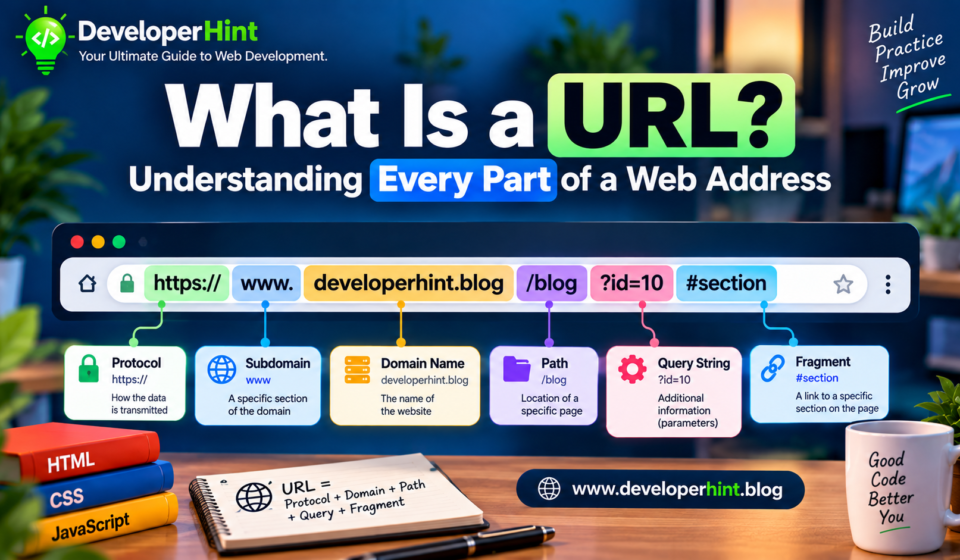
https://www.example.com:443/blog/web-development?sort=newest&page=2#commentsThat’s not a random string. Every character is doing a job. By the end of this, you’ll be able to glance at any URL and know exactly what each segment is telling the browser to do.
Scheme: How the Browser Should Talk
The part before the colon and double slash is the scheme, sometimes called the protocol.
https://This tells the browser which set of rules to use for the conversation it’s about to have. https means the connection is encrypted through TLS. You’ll also run into http (same idea, no encryption), mailto: for email links, ftp:// for file transfer, and tel: for phone numbers on mobile devices. Each one tells the browser or operating system to hand the request off to a different piece of software.
Here’s a small thing worth noticing: most browsers these days quietly warn you, or even block the page outright, if a site still runs on plain http. That’s not the browser being paranoid. It’s a reasonable response to decades of sites sending passwords and form data across the internet in plain text.
The Domain, and Why It’s Not the Same as a Server
Right after the scheme sits the domain, www.example.com in our example. People sometimes use “domain” and “website” interchangeably, which is fine in casual conversation but worth separating when you’re actually building things. The domain is a human-readable name. Computers don’t use it directly to find anything; they use IP addresses, and DNS is the system that quietly translates one into the other behind the scenes every time you load a page. If you want the full mechanics of that lookup, we cover it in our web server guide. For now, just know the domain is a pointer, not the destination itself.
You’ll sometimes see a subdomain tacked onto the front, like blog.example.com or shop.example.com. These act like separate sections of a site, often pointing to entirely different servers or applications even though they share the same root domain. www itself is technically just a subdomain too, a convention from the early web that’s stuck around mostly out of habit.
Port Numbers (And Why You Rarely See Them)
After the domain, sometimes you’ll see a colon followed by a number:
:443Ports are how a single server keeps different services organize, think of them as numbered doors on the same building. HTTPS defaults to port 443. Plain HTTP defaults to port 80. Because those are the expected defaults, browsers don’t bother showing them; typing example.com is functionally identical to typing example.com:443 if you’re using HTTPS. You’ll see port numbers show up explicitly during local development, though. localhost:3000 or localhost:5173 are common sights if you’ve run a dev server with Vite, Create React App, or a similar tool. The number just tells your computer which running process should handle the request, since you’ll often have several local servers running at once.
The Path: Where the Resource Actually Lives
Everything after the domain and port, up until a question mark shows up, is the path:
/blog/web-developmentThink of this as the address within the address it tells the server which specific resource you want. On older, simpler sites, a path often mapped directly to a file sitting on disk somewhere. /about.html meant there was genuinely a file called about.html on the server. Modern applications usually don’t work that way anymore. A React or Next.js app might define /blog/web-development as a route handled entirely in JavaScript, with no matching file on the server at all the path becomes a pattern the application recognizes and responds to, rather than a literal filesystem lookup.
That distinction matters more than it sounds like it should. It’s part of why single-page applications sometimes need extra server configuration to handle page refreshes correctly, if you refresh on /blog/web-development and the server tries to find a literal file at that path instead of handing control back to your JavaScript router, you’ll get a 404 instead of your page.
Query Strings: Passing Information Through the URL
The part starting with a question mark is the query string:
?sort=newest&page=2This is where a URL carries actual data, structured as key-value pairs separated by ampersands. sort=newest says sort by newest. page=2 says show page two. An e-commerce site might use something like ?category=shoes&size=10&color=black to represent a filtered product listing and because all of that lives in the URL itself, you can bookmark that exact filtered view, or paste the link to someone else, and they’ll land on the same filtered results you were looking at.
In JavaScript, you’ll often read these values using the URLSearchParams API rather than parsing the string by hand:
const params = new URLSearchParams(window.location.search);
const sort = params.get("sort");
const page = params.get("page");

console.log(sort, page);
The Fragment: A Jump Inside the Page
Last comes the fragment, marked by the hash symbol:
#commentsThis one is different from everything before it, because the browser never actually sends it to the server. It’s handled entirely client-side. Historically, its job was scrolling the browser straight to an element with a matching id, like jumping down to a comments section on a long blog post. Single-page applications later repurposed the fragment for client-side routing you may have seen URLs like example.com/#/dashboard in older React or Angular apps, back before the History API made clean, hash-free routing straightforward. That technique has mostly fallen out of fashion now that pushState handles routing without needing the hash symbol at all, but you’ll still run into it occasionally in older codebases.
Putting the Whole Thing Back Together
| Part | Example | What It Tells the Browser |
|---|---|---|
| Scheme | https:// | Which protocol to use for the connection |
| Domain | www.example.com | Which server to find, via DNS |
| Port | :443 | Which service on that server to talk to (usually hidden) |
| Path | /blog/web-development | Which specific resource to request |
| Query string | ?sort=newest&page=2 | Extra data sent along with the request |
| Fragment | #comments | A location within the page, never sent to the server |
A Couple of Things That Trip People Up
Capitalization matters more than it seems like it should. Domains are case-insensitive, so Example.com and example.com point to the same place. Paths generally aren’t /About and /about can be two entirely different pages on a server that cares about case, which is a surprisingly common source of mysterious 404s. Trailing slashes can also matter more than people expect. /blog and /blog/ are sometimes treated as the same route and sometimes not, depending entirely on how the server or framework is configured.
If you’ve ever seen a site redirect you the instant you load a page, add a slash, strip a slash that’s usually what’s happening behind the scenes. And then there’s encoding. URLs can’t contain raw spaces or certain special characters, so they get encoded instead. A space becomes %20. An ampersand inside a value that isn’t meant to separate query parameters becomes %26. If you’ve ever pasted a search query into an address bar and watched it turn into a string full of percent signs, that’s exactly what you were looking at.
Why This Actually Matters Once You’re Building Things
None of this is just trivia for a quiz. If you’re setting up routing in a frontend framework, you’re deciding how paths map to components. If you’re building a search feature, you’re deciding what belongs in the query string versus what lives in local component state. If you’re debugging a request that’s quietly failing, the first thing worth doing is looking closely at the exact URL being requested, a single typo in a path, a missing query parameter, or an unencoded character is behind a huge share of “it’s just not working” bugs that otherwise eat up an afternoon.
A URL looking like one long unbroken string is mostly an illusion anyway. It’s six or seven distinct pieces of information doing six or seven distinct jobs, stitched together into something that happens to be readable at a glance. Once you can see the seams, reading one or writing one correctly, stops being guesswork.
Discover more from Developer Hint
Subscribe to get the latest posts sent to your email.
Content Disclosure
This content was created with the assistance of AI tools and thoroughly reviewed, fact-checked, and refined by a human editor to ensure accuracy, clarity, and usefulness for readers.Advertisements