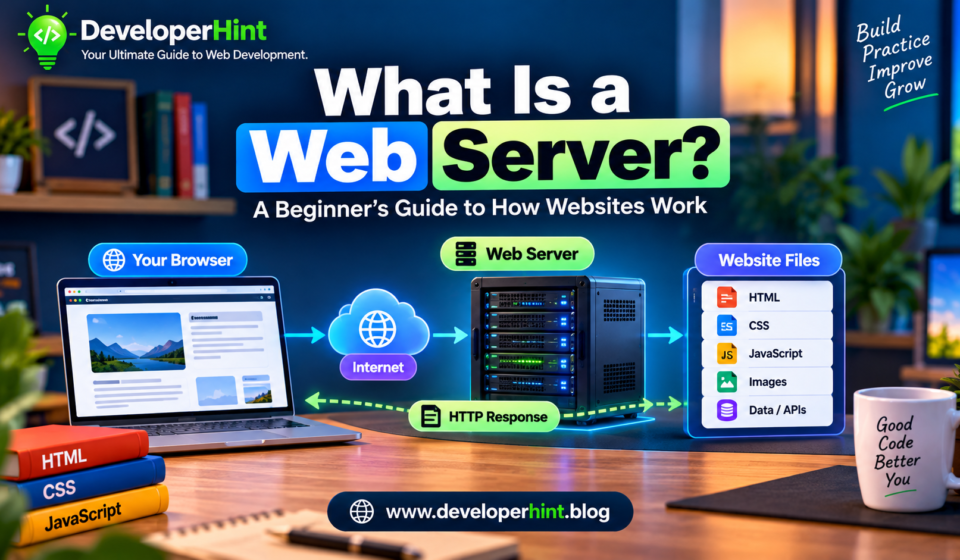

You type a website address into your browser, hit enter, and a page shows up almost instantly. It’s easy to never think about what actually happens in between — but somewhere in that split second, something called a web server did most of the work.
A web server is a system that receives requests from clients like browsers and responds by delivering resources — HTML, CSS, JavaScript, images, fonts, video, JSON data, or the output of an API. At the simplest level, its whole job comes down to two things: receiving requests and sending back responses. If you’re learning web development, understanding that loop connects a lot of concepts you’ll run into later — HTTP, domains, hosting, APIs, and backend development all sit on top of this same basic idea.
What Actually Happens When You Visit a Website
Here’s the full journey, step by step, for something as simple as typing www.example.com into your browser.
First, your browser needs to figure out where that site actually lives. Domain names exist because they’re easier for humans to remember than a string of numbers, so your browser asks DNS (the Domain Name System) to translate www.example.com into an IP address — something like 192.0.2.10. With that address in hand, the browser sends an HTTP request to the server:
GET / HTTP/1.1
Host: www.example.com
The server receives that request and figures out what to send back. For a simple static site, that might just mean locating a file like index.html. For a dynamic application, it usually means running backend code, querying a database, and building the response from scratch. Either way, the server replies with an HTTP response — a status code plus whatever content was requested:
HTTP/1.1 200 OK
Content-Type: text/html
followed by the actual HTML. The browser then requests whatever additional resources that HTML references — a stylesheet, a script, an image, a font — and once everything’s back, it renders the finished page you actually see. All of that, from typing the address to seeing the page, usually takes a fraction of a second.
Static Content vs. Dynamic Applications
Not every server request works the same way underneath. For static content, the server can just hand back an existing file — request /about.html, and the server returns exactly that file with no extra processing. For a dynamic application, like an online store, requesting /products/123 means the server runs backend code, queries a database for that specific product, and builds a response on the fly:
{
  "name": "Laptop",
  "price": 799,
  "available": true
}
The frontend then takes that response and displays it. Most real applications mix both approaches — static assets like images and stylesheets served directly, dynamic data generated per request.
Getting the Terminology Straight
A handful of related terms get used almost interchangeably by beginners, and it’s worth pulling them apart, because they genuinely mean different things.
“Server” on its own is a broad word — it can mean a physical machine, a virtual machine, or software providing a particular service. A single machine might run a web server, a database server, and a mail server all at once, so “server” alone doesn’t tell you much without context. A web server specifically is the piece handling HTTP requests and responses — software like Apache or Nginx, or code you write yourself with something like Node.js.
Web hosting is different again — it’s the broader service or infrastructure that gives your website or application somewhere to actually run. Think of the web server as the software doing the serving, and hosting as the service providing the place for that software to live; when you buy hosting, you’re paying for infrastructure, not directly for “a web server” as a product.
A website is the actual content and functionality people experience — the HTML, CSS, JavaScript, images, and data that make it up — while a webpage is one individual document within that website, like an About page. The web server is the infrastructure that delivers both. And the browser is the other end of the conversation entirely — software running on your device (Chrome, Firefox, Edge, Safari) whose job is to send the request and render whatever comes back. Put simply: the browser asks, and the web server answers.
Apache, Nginx, and Reverse Proxies
Two names come up constantly once you start reading about web servers. Apache HTTP Server is a long-established, open-source web server that receives HTTP requests and serves resources back to clients. Nginx is another widely used option, often deployed as a reverse proxy in front of an application rather than serving content directly itself — meaning it sits between users and your actual application, forwarding requests, handling TLS termination, serving static files, and sometimes load-balancing traffic across multiple servers. A typical setup might route a user through Nginx, into a Node.js application, and finally to a database. You don’t need to master reverse proxies as a beginner, but it’s a concept worth recognizing once you start deploying real applications.
Building Your Own Web Server With Node.js
One of the clearest ways to actually understand what a web server does is to build a tiny one yourself. Node.js lets JavaScript run outside the browser, and it includes a built-in http module for creating servers directly:
const http = require("http");

const server = http.createServer((req, res) => {
    res.writeHead(200, {
        "Content-Type": "text/html"
    });

    res.end(`
        <h1>Hello, Developer!</h1>
        <p>This page came from my Node.js server.</p>
    `);
});

server.listen(3000, () => {
    console.log("Server running at http://localhost:3000");
});
Save that as server.js, run node server.js, and open http://localhost:3000 in your browser — you’ll see your own server responding to a real HTTP request, which is a far more concrete way to understand the concept than reading a definition.
In practice, most developers reach for Express rather than the raw http module, since it handles routing and a lot of repetitive setup for you:
const express = require("express");

const app = express();

app.get("/", (req, res) => {
    res.send("Hello, Developer!");
});

app.listen(3000);
That’s a complete, working server that responds to requests at / — and it’s a big part of why Node.js and Express are such a popular combination for JavaScript backend development. If you want to see how Express fits into a full application alongside a database and a frontend, our MERN stack guide walks through the whole stack.
Local Development vs. Production
When you’re building locally, you’ll spend a lot of time at addresses like http://localhost:3000. localhost refers to your own machine, and the number after the colon is the port — the specific channel a service is listening on. Standard web traffic uses well-known ports by default (port 80 for HTTP, port 443 for HTTPS), which is why you don’t normally see a port number in a typical URL; local development servers usually pick something else, like 3000 or 5173, since those default ports are often already in use or require elevated permissions.
A server running on localhost is only reachable from your own computer, which makes it ideal for building and testing before anyone else sees your work. Once you’re ready for real users, you deploy to a production environment — infrastructure that, unlike your local setup, needs to account for security, monitoring, backups, performance under real traffic, and reliability over time.
Choosing Hosting for a Real Project
A single server can host more than one website — a hosting provider often runs several sites on the same underlying infrastructure, routing each incoming request to the right one based on the hostname requested. This is common with shared hosting, one of several hosting types you’ll run into. Shared hosting has multiple sites splitting the resources of one server, generally the simplest and cheapest option to manage. A VPS (Virtual Private Server) gives you a virtualized slice of a server with more control than shared hosting typically allows. A dedicated server hands an entire physical machine to one customer. And cloud hosting spreads an application across cloud infrastructure, scaling resources up or down depending on the provider and how the application is architected.
Which one makes sense depends on your site’s traffic, technical requirements, budget, and how much server management you actually want to take on yourself. Worth comparing across providers: price, performance, storage and bandwidth limits, backup options, SSL support, and how much room there is to scale later.
If you’re shopping for hosting for your own project, we use Hostinger for Developer Hint and readers using our referral link get 20% off: Hostinger — Developer Hint Referral Link. Disclosure: this is a Developer Hint referral link, and terms or availability may change, so check the current offer on Hostinger’s site before purchasing.
Why Any of This Matters if You’re a Frontend Developer
If you’re focused on frontend work, it’s tempting to assume servers are someone else’s problem. But eventually your React app (or whatever you’re building) needs to fetch real data, and that request travels from your frontend, through an API, to a web server, into your backend, and finally to a database before anything comes back. One architectural point worth internalizing early: your browser should never talk directly to a database. Everything goes through a backend that controls access — the web server and API are the gatekeepers in between. Understanding that flow makes APIs, authentication, and deployment click a lot faster once you get to them, and our web development fundamentals guide covers how all these pieces fit together at a broader level.
A Few Things Worth Getting Right Early
A handful of assumptions trip up a lot of beginners here. It’s easy to picture a server as always being a physical machine sitting in a data center somewhere, but the word covers physical hardware, virtual machines, and plain software just as often. It’s also easy to blur hosting and web servers into the same thing, when hosting is really the broader infrastructure arrangement and a web server is one specific component within it. And as mentioned above, the browser talking directly to a database is a genuine misconception worth catching early — that connection always routes through a backend.
Finally, you don’t need to buy or manage a physical server as a beginner at all; developing locally and deploying to a hosting provider or cloud platform when you’re ready covers essentially everything you’ll need starting out.
Wrapping Up
Strip away the terminology, and a web server’s job is genuinely simple: it receives requests and sends back responses. Getting there — domain, DNS, HTTP, the server itself, maybe a backend and a database — involves more steps than it feels like when a page loads instantly, but each one is doing a specific, understandable job.
You don’t need to understand every layer of this on day one. Start with the core flow — browser, HTTP, web server, backend, database and build outward from there. Spin up a local server, make a request, inspect what comes back, and that flow will start to feel concrete instead of abstract. For developers, that’s really the whole point: once this loop is second nature, topics like APIs, authentication, deployment, and hosting stop being separate mysteries and start looking like variations on the same basic idea.
Discover more from Developer Hint
Subscribe to get the latest posts sent to your email.
Content Disclosure
This content was created with the assistance of AI tools and thoroughly reviewed, fact-checked, and refined by a human editor to ensure accuracy, clarity, and usefulness for readers.Advertisements