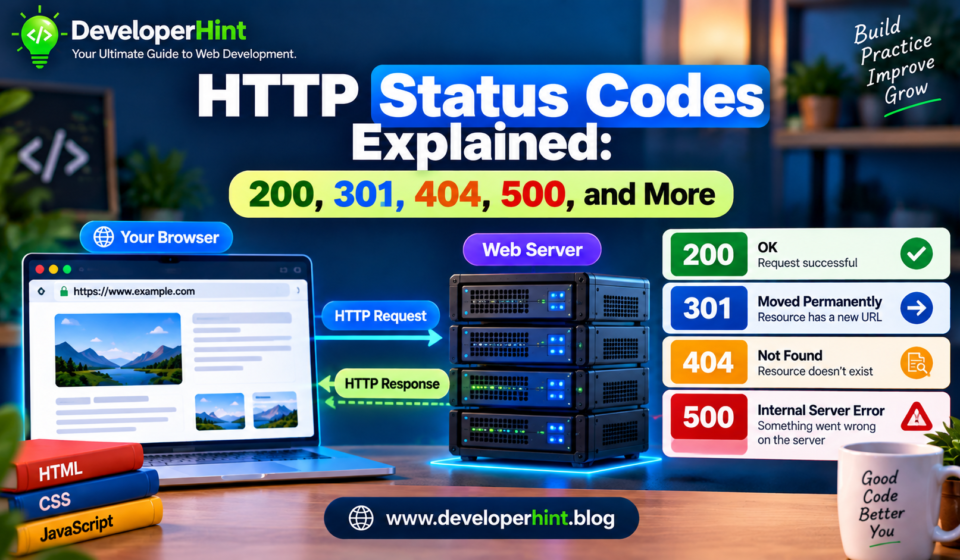

If you’ve ever landed on a page that just says “404 Not Found,” you’ve already run into an HTTP status code without necessarily knowing what it was. You’ve probably seen a few others too — 200, 301, 403, 500, showing up in browser tabs, API responses, or error messages without much explanation.
An HTTP status code is a three-digit number a server sends back with every HTTP response, telling the client exactly what happened with its request. When your browser asks for a page and the server responds with HTTP/1.1 200 OK, that 200 is saying “your request worked.” A response of HTTP/1.1 404 Not Found is saying “I couldn’t find what you asked for.” Once you understand what these numbers mean, broken links, redirects, and API errors go from mysterious to genuinely diagnosable.
The Five Status Code Categories
Every status code falls into one of five categories based on its first digit, and knowing just this much gets you most of the way to reading any code you encounter:
| Range | Category | General Meaning |
|---|---|---|
| 1xx | Informational | The request is still being processed |
| 2xx | Success | The request was handled successfully |
| 3xx | Redirection | Further action is needed, usually a redirect |
| 4xx | Client Error | Something’s wrong with the request or access |
| 5xx | Server Error | The server failed to handle a valid request |
You’ll barely run into 1xx codes in ordinary web development — they’re informational responses indicating a request is still in progress, and beginners generally don’t need to think about them beyond knowing they exist. The other four categories are where the useful detail lives.
2xx: Something Worked
Codes starting with 2 mean the server successfully handled the request. 200 OK is the one you’ll see constantly — a straightforward “this worked” for the vast majority of successful requests. 201 Created shows up specifically after a request that creates something new, commonly following a POST:
POST /api/users → 201 Created{
"id": 42,
"name": "Mohamed"
}204 No Content means the request succeeded but there’s genuinely nothing to send back — a DELETE /api/posts/10 that removes a post successfully is a good example; the deletion worked, so there’s no response body needed to confirm it.
3xx: Something Moved
Codes starting with 3 tell the client to take further action, usually by following a redirect. 301 Moved Permanently means a resource has permanently relocated to a new URL — if you change /blog/javascript-basics to /javascript/javascript-basics, a properly configured 301 sends both visitors and search engines to the new location instead of a dead page. That matters for SEO specifically, since it tells search engines to transfer any ranking value to the new URL rather than starting over. It’s worth being deliberate about redirects, though long chains of unnecessary redirects can hurt both performance and user experience, so use them for genuine permanent moves rather than papering over every broken link.
302 Found is the temporary counterpart same basic idea, but signaling that the move isn’t permanent. The distinction that actually matters day to day: 301 means permanent, 302 means temporary. A few other redirect codes exist (303, 307, 308) with more specific meanings, but 301 and 302 cover the vast majority of what you’ll encounter.
4xx: Something’s Wrong With the Request
Codes starting with 4 mean there’s a problem on the client side of the request though that doesn’t always mean a human did something wrong. It might mean a URL doesn’t exist, required authentication is missing, access isn’t permitted, or the request itself is malformed.
400 Bad Request means the server couldn’t process the request because it was invalid an API expecting a specific JSON shape that receives something malformed, for instance. 401 Unauthorized, despite the name, generally means authentication is required or the credentials provided weren’t valid, an API expecting a bearer token that doesn’t get one returns this. 403 Forbidden is a different situation: the server understood exactly what you’re asking for, it’s just not going to authorize it, a logged-in user trying to reach an admin-only area is the classic example. The distinction worth remembering: 401 means your identity isn’t verified, 403 means it is, but you still can’t have this.
404 Not Found is the one you’ve almost certainly seen more than any other, it means the server couldn’t find a current version of whatever was requested. It usually comes down to one of a few causes: a mistyped URL, a page that’s been deleted or moved without a redirect in place, a broken internal link pointing somewhere that no longer exists, or a frontend requesting an API endpoint that isn’t actually available.
A few less common but still useful 4xx codes: 405 Method Not Allowed means the resource exists, but not for the HTTP method you used, an endpoint that supports GET but not DELETE, for example. 409 Conflict signals that a request conflicts with the resource’s current state, in whatever way the API defines that. And 429 Too Many Requests is rate limiting in action, the client has sent too many requests in too short a window, and the server is asking it to slow down, sometimes with information about when to try again.
5xx: Something’s Wrong With the Server
Codes starting with 5 mean the request itself was probably fine, but something broke while the server was trying to handle it. 500 Internal Server Error is the general-purpose version of this, an unexpected problem occurred, and the cause could be almost anything: an application bug, an unhandled exception, a database failure, a misconfigured environment variable. When you see a 500, the investigation belongs on the server side check logs and backend code, not the browser.
502 Bad Gateway shows up specifically in architectures where one server sits in front of another, Nginx in front of a Node.js app, for instance and means the front-facing server got an invalid response from whatever’s behind it. 503 Service Unavailable means the server can’t handle the request right now, often due to overload, maintenance, or a temporary outage and unlike a 500, it generally implies the problem is temporary rather than a bug that needs fixing. 504 Gateway Timeout is related to 502 but specifically means the upstream server took too long to respond at all, which often points to something slow or unresponsive further down the chain, like a struggling database.
Status Codes in a Real API
Here’s how these actually show up together in a small task API. Getting the task list returns 200 OK. Creating a new task with POST /api/tasks returns 201 Created. Requesting a task that doesn’t exist, like GET /api/tasks/999, returns 404 Not Found. Sending malformed data in a POST returns 400 Bad Request. And trying to reach a protected endpoint while logged out returns 401 Unauthorized. Once you see status codes mapped onto a real set of endpoints like this, their purpose stops feeling abstract — they’re doing real communication work between your frontend and backend.
Checking Status Codes With fetch()
When you’re working with JavaScript’s fetch(), the response object gives you direct access to the status:
fetch("/api/posts")
    .then(response => {
        console.log(response.status);
    });
You can also check response.ok, which is true for any status in the 200–299 range:
fetch("/api/posts")
    .then(response => {
        if (response.ok) {
            console.log("Request succeeded");
        } else {
            console.log("Request failed:", response.status);
        }
    });
There’s a genuinely common beginner trap worth calling out here: fetch() does not automatically reject its promise for a 404 or 500 response as far as fetch is concerned, receiving any HTTP response at all counts as success, even an error response. That means code like this will happily log “Success” even when the server returned a 500:
fetch("/api/posts")
    .then(response => {
        console.log("Success");
    });
You need to check the status yourself and throw explicitly if something went wrong:
fetch("/api/posts")
    .then(response => {
        if (!response.ok) {
            throw new Error(`HTTP error: ${response.status}`);
        }

        return response.json();
    })
    .then(data => {
        console.log(data);
    })
    .catch(error => {
        console.error(error);
    });
Understanding this one quirk will save you a genuinely confusing debugging session the first time an API error slips silently past a .then() that assumed everything was fine.
Actually Debugging an HTTP Error
When you run into a status code you weren’t expecting, resist the urge to guess. Check what URL was actually requested, which HTTP method was used, what status came back, and whether the response body includes any error detail, APIs often include a message explaining exactly what went wrong. Your browser’s DevTools Network tab is the single most useful tool here: it shows every request a page made along with its method, status code, headers, and timing, all in one place.
That view can also explain problems that aren’t obvious from looking at the rendered page. Say a page loads its HTML, CSS, and JavaScript fine, but the logo never appears, the Network tab might show logo.png came back as a 404 while everything else returned 200, immediately pointing you toward a broken image path rather than leaving you guessing at a rendering bug.
One habit worth building early: when you see a 500, don’t keep refreshing the browser hoping it resolves itself, the problem lives on the server, so the fix (or at least the next clue) lives in server logs and backend code, not in anything you can do from the client side. And on the flip side, a well-designed custom 404 page, something friendlier than a blank browser default, with a clear message and a link back home genuinely helps visitors recover from a broken or outdated link instead of just bouncing off the site.
A Few Misconceptions Worth Clearing Up
A 404 doesn’t mean the whole site is broken it means one specific resource wasn’t found, and everything else on the site can be working fine. Not every 4xx is the visitor’s fault either a typo in your own frontend code, like requesting /api/usres instead of /api/users, will correctly produce a 404 that has nothing to do with anything the user did. And it’s worth resisting the temptation, especially in an API you’re building yourself, to just return 200 OK for everything, errors included that might feel simpler in the moment, but it strips away information your API consumers actually need to handle failures properly.
Quick Reference
| Code | Name | Meaning |
|---|---|---|
| 200 | OK | Request succeeded |
| 201 | Created | A new resource was created |
| 204 | No Content | Succeeded, nothing to return |
| 301 | Moved Permanently | Resource permanently relocated |
| 302 | Found | Temporary redirect |
| 400 | Bad Request | Malformed or invalid request |
| 401 | Unauthorized | Authentication missing or invalid |
| 403 | Forbidden | Understood, but not authorized |
| 404 | Not Found | Resource doesn’t exist |
| 405 | Method Not Allowed | Wrong HTTP method for this resource |
| 409 | Conflict | Conflicts with current resource state |
| 429 | Too Many Requests | Rate limit exceeded |
| 500 | Internal Server Error | Unexpected server-side failure |
| 502 | Bad Gateway | Invalid response from upstream server |
| 503 | Service Unavailable | Server temporarily can’t handle requests |
| 504 | Gateway Timeout | Upstream server took too long to respond |
Best for: bookmarking. You don’t need to memorize this table knowing the five categories and the handful of codes you’ll see daily (200, 201, 400, 401, 403, 404, 500) covers most real situations, and you can look the rest up as they come up.
Wrapping Up
HTTP status codes are really just the web’s way of telling you what happened with a request, and reading them by category success, redirect, client problem, server problem gets you most of the way to understanding any code you haven’t memorized. The handful worth knowing cold are 200 for success, 301 for a permanent move, 404 for a resource that isn’t there, and 500 for something broken on the server.
You’ll run into these constantly once you start working with real applications in the browser’s DevTools, in API responses, in backend logs, in hosting dashboards. The more fluent you get with them, the faster you move from “the site isn’t working” to “the API returned a 404 on this specific GET request” and that second sentence is a genuinely useful starting point for actually fixing the problem, instead of just staring at a broken page.
Discover more from Developer Hint
Subscribe to get the latest posts sent to your email.
Content Disclosure
This content was created with the assistance of AI tools and thoroughly reviewed, fact-checked, and refined by a human editor to ensure accuracy, clarity, and usefulness for readers.Advertisements