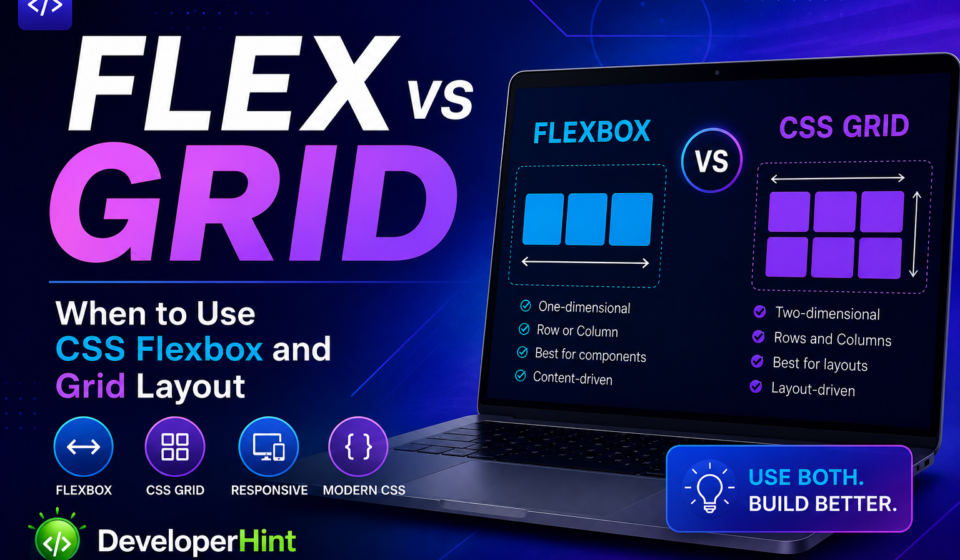

Modern CSS gives developers two powerful layout systems: Flexbox and CSS Grid. Both make building layouts easier, but they solve different problems.
Many beginners try to pick one over the other — when in reality, professional developers use both together.
In this guide, you will learn what Flexbox and CSS Grid are, the key differences between them, when to use each one, and how to combine them for real-world projects.
What is CSS Flexbox?
Flexbox (Flexible Box Layout) is a one-dimensional layout system. It works along a single axis — either a row or a column — making it perfect for aligning items in one direction at a time.
Flexbox is best when you need to align, distribute, or space items inside a container without worrying about the other axis.
Flexbox Example
<div class="container">
  <div>Home</div>
  <div>About</div>
  <div>Contact</div>
</div>
.container {
display: flex;
justify-content: space-between;
align-items: center;
}This creates a horizontal navigation bar where items are evenly spaced and vertically centered — something that used to require floats and clearfix hacks.
What is CSS Grid?
CSS Grid is a two-dimensional layout system. It controls both rows and columns at the same time, making it ideal for building full page layouts and complex UI structures.
CSS Grid Example
<div class="grid-container">
  <div>Header</div>
  <div>Sidebar</div>
  <div>Main Content</div>
  <div>Footer</div>
</div>
.grid-container {
display: grid;
grid-template-columns: 200px 1fr;
gap: 20px;
}This creates a layout with a fixed-width sidebar and a flexible content area that fills the remaining space — in just three lines of CSS.
CSS Flexbox vs Grid: Key Differences
| Feature | Flexbox | CSS Grid |
|---|---|---|
| Layout Type | One-dimensional | Two-dimensional |
| Direction | Row or column | Rows and columns |
| Best For | Small UI components | Full page layouts |
| Alignment | Excellent | Excellent |
| Complexity | Simpler | More powerful |
| Item Placement | Content-driven | Layout-driven |
When to Use CSS Flexbox
Flexbox works best for small, component-level layouts where you need to align or distribute items along a single axis. Common use cases include:
- Navigation bars and menus
- Button groups
- Card rows
- Centering elements vertically and horizontally
- Spacing items inside a toolbar or header
Flexbox Use Case Examples
/* Navigation bar */
.navbar {
  display: flex;
  justify-content: space-between;
  align-items: center;
}

/* Card row */
.card-container {
  display: flex;
  gap: 20px;
  flex-wrap: wrap;
}
Before Flexbox, centering an element vertically in CSS was famously painful. Today, it takes one line: align-items: center.
When to Use CSS Grid
CSS Grid shines when you need to control layout in both dimensions at once. It is the right tool for:
- Full page layouts (header, sidebar, content, footer)
- Dashboards
- Image galleries
- Complex responsive designs
- Multi-column content sections
CSS Grid Layout Example
.layout {
  display: grid;
  grid-template-columns: 250px 1fr;
  grid-template-rows: auto 1fr auto;
  min-height: 100vh;
}
With this setup, you get a complete page structure — header, sidebar, main content, and footer — all defined in one clean block of CSS. No floats, no hacks, no extra markup.
Can You Use Flexbox and Grid Together?
Yes and you should. This is how most professional developers build modern layouts. The two systems are designed to complement each other, not compete.
The most common pattern is:
- Use CSS Grid for the overall page structure
- Use Flexbox for alignment inside individual components
/* Grid handles the page layout */
.page {
  display: grid;
  grid-template-columns: 250px 1fr;
}

/* Flexbox handles the navbar inside the header */
.navbar {
  display: flex;
  justify-content: space-between;
  align-items: center;
}
This gives you the structural power of Grid at the macro level, and the flexible alignment of Flexbox at the component level.
Which One is Easier to Learn?
Flexbox is generally easier for beginners. It has fewer properties, focuses on one direction, and is intuitive for small layouts. You can build useful things with Flexbox quickly.
CSS Grid has a steeper learning curve concepts like grid-template-areas, fr units, and implicit vs explicit grids take time to click. But once they do, Grid becomes one of the most powerful tools in your CSS toolkit.
Recommendation: Learn Flexbox first, then move on to Grid. They build on each other well.
Responsive Design with Flexbox and Grid
Both systems handle responsive design natively, without media queries in many cases.
Responsive Flexbox
.container {
  display: flex;
  flex-wrap: wrap;
  gap: 16px;
}
With flex-wrap: wrap, items automatically drop to the next line when there is not enough space.
Responsive CSS Grid
.grid {
  display: grid;
  grid-template-columns: repeat(auto-fit, minmax(250px, 1fr));
  gap: 20px;
}
This single line creates a fully responsive grid where columns are automatically added or removed based on screen size — no media queries needed. Grid often wins for responsive card layouts because of this.
The Most Common Beginner Mistake
The biggest mistake beginners make is trying to build everything with only Flexbox or only Grid. This leads to overly complex code and layouts that are hard to maintain.
Modern CSS is not an either-or situation. The cleaner approach is:
- Use Grid to define structure and placement
- Use Flexbox to align and distribute content within components
Once you start thinking this way, your stylesheets become shorter, more readable, and much easier to debug.
Final Thoughts
CSS Flexbox and Grid are not competitors they are complementary tools built for different jobs. Flexbox handles one-dimensional alignment. Grid handles two-dimensional layout. Together, they cover virtually every layout challenge you will face in modern web development.
The more projects you build, the more natural it becomes to recognize which tool fits the problem. Start with Flexbox for components, move to Grid for structure, and use both together for clean, scalable layouts.
Master both, and your CSS will be faster, cleaner, and more responsive across every screen size.
Discover more from Developer Hint
Subscribe to get the latest posts sent to your email.
Content Disclosure
This content was created with the assistance of AI tools and thoroughly reviewed, fact-checked, and refined by a human editor to ensure accuracy, clarity, and usefulness for readers.Advertisements