Skip to content
-
Subscribe to our newsletter & never miss our best posts. Subscribe Now!
Developer Hint

Simple Coding Tips For Developers.

Developer Hint

Simple Coding Tips For Developers.

  • Home
  • Web Development
  • Tech Explained
  • Developer Tools
  • Contact Us
  • Home
  • Web Development
  • Tech Explained
  • Developer Tools
  • Contact Us
Close

Search

Trending Now:
5 Essential Tools Every Blogger Should Use Music Trends That Will Dominate This Year ChatGPT prompts – AI content & image creation trend Ghibli trend – viral anime-style visual trend
Subscribe
Developer Hint

Simple Coding Tips For Developers.

Developer Hint

Simple Coding Tips For Developers.

  • Home
  • Web Development
  • Tech Explained
  • Developer Tools
  • Contact Us
  • Home
  • Web Development
  • Tech Explained
  • Developer Tools
  • Contact Us
Close

Search

Trending Now:
5 Essential Tools Every Blogger Should Use Music Trends That Will Dominate This Year ChatGPT prompts – AI content & image creation trend Ghibli trend – viral anime-style visual trend
Subscribe
Home/Web Development/CSS Positioning Explained: Absolute, Relative, Fixed & Sticky
Css Positioning Explained
Web Development

CSS Positioning Explained: Absolute, Relative, Fixed & Sticky

By Developer Hint
April 16, 2026 3 Min Read
0

If you’ve ever tried to move an element in CSS and it didn’t behave the way you expected, you’re not alone.

CSS positioning is one of those topics that feels confusing at first—but once it clicks, it becomes one of your most powerful tools.

In this guide, you’ll understand how positioning actually works, not just how to use it.

What is CSS Positioning?

CSS positioning controls how elements are placed on a webpage.

By default, elements follow the normal document flow. Positioning allows you to override that behavior and place elements exactly where you want them.

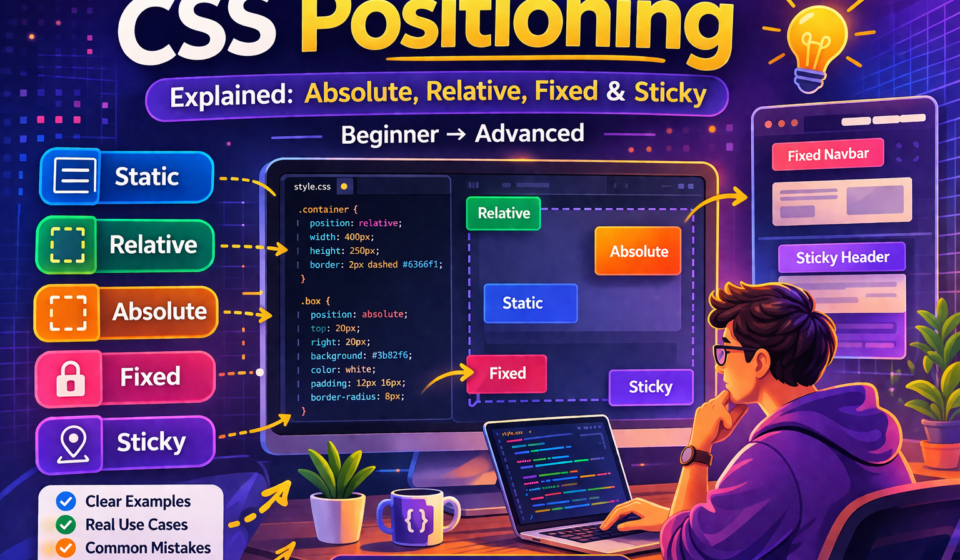
The main values of the position property are:

  • static
  • relative
  • absolute
  • fixed
  • sticky

Let’s break them down clearly.

1. Static Positioning (Default)

Every element is positioned as static by default.

This means:

  • It follows normal document flow
  • Top, right, bottom, left properties do not work

You usually don’t need to set this manually unless you’re resetting something.

2. Relative Positioning

When you set an element to position: relative, it stays in its normal place—but you can move it relative to itself.

Example:

.box {
position: relative;
top: 20px;
left: 10px;
}

What happens here:

  • The element moves slightly from its original position
  • The original space is still reserved

This is important for the next concept.

3. Absolute Positioning

This is where things start to feel powerful—and confusing.

An element with position: absolute is removed from normal flow and positioned relative to its nearest positioned parent.

Example:

.container {
position: relative;
}.child {
position: absolute;
top: 0;
right: 0;
}

Key idea:
If there is no positioned parent, the element will position itself relative to the entire page.

This is a very common source of bugs.

4. Fixed Positioning

position: fixed places an element relative to the viewport (the screen).

Example:

.navbar {
position: fixed;
top: 0;
width: 100%;
}

What this means:

  • The element stays in the same place even when you scroll

Common use cases:

  • Navigation bars
  • Floating buttons

5. Sticky Positioning

Sticky is a mix between relative and fixed.

Example:

.header {
position: sticky;
top: 0;
}

Behavior:

  • Acts like relative at first
  • Becomes fixed when you scroll to a certain point

This is great for:

  • Sticky headers
  • Section labels

Understanding Top, Left, Right, Bottom

These properties control the position of elements—but only when position is not static.

Example:

.box {
position: absolute;
top: 50px;
left: 20px;
}

They define how far the element is from its reference point.

Common Mistakes Developers Make

  • Using absolute without a relative parent
  • Overusing fixed positioning
  • Not understanding document flow
  • Forgetting that elements are removed from flow

Fixing these will make layout much easier.

When Should You Use Each?

  • Use relative → for small adjustments or as a parent reference
  • Use absolute → for precise positioning inside a container
  • Use fixed → for UI elements that must stay visible
  • Use sticky → for scroll-based behavior

Real-World Example

Imagine a card component with a notification badge:

  • Parent → position: relative
  • Badge → position: absolute (top-right corner)

This is one of the most common use cases in modern UI design.

Final Thoughts

CSS positioning may feel tricky at first, but it becomes intuitive once you understand how elements relate to each other.

Instead of memorizing, focus on understanding the logic behind it.

Practice with small examples, and you’ll quickly gain confidence.

Share this:

  • Share on Facebook (Opens in new window) Facebook
  • Share on X (Opens in new window) X
  • Share on Telegram (Opens in new window) Telegram
  • Share on WhatsApp (Opens in new window) WhatsApp
  • Email a link to a friend (Opens in new window) Email
  • Print (Opens in new window) Print

Discover more from Developer Hint

Subscribe to get the latest posts sent to your email.

Content Disclosure
This content was created with the assistance of AI tools and thoroughly reviewed, fact-checked, and refined by a human editor to ensure accuracy, clarity, and usefulness for readers.
Advertisements
banner

Tags:

CSSCSS basicsfrontend developmentWeb Development
Author

Developer Hint

Follow Me
Other Articles
How To Stay Consistent As A Web Developer
Previous

How to Build Consistency as a Web Developer (Even If You’re Busy)

No Comment! Be the first one.

    Leave a ReplyCancel reply

    Random Posts

    • Web Accessibility Testing Tools for Developers (Free & Paid)Web Accessibility Testing Tools for Developers (Free & Paid)
    • Responsive Web Design with Bootstrap’s Grid SystemResponsive Web Design with Bootstrap’s Grid System
    • How Does a Website Work? From Domain to Browser ExplainedHow Does a Website Work? From Domain to Browser Explained
    • Beginner Guide to HTML & CSS (With Examples)Beginner Guide to HTML & CSS (With Examples)
    • Essential VS Code Code Formatting TipsEssential VS Code Code Formatting Tips

    Popular

    Random Posts

    • Common Mistakes Beginner Web Developers MakeCommon Mistakes Beginner Web Developers Make
    • How to Speed Up Your WordPress Website (Complete Performance Guide)How to Speed Up Your WordPress Website (Complete Performance Guide)
    • Mastering CSS Variables for BeginnersMastering CSS Variables for Beginners
    • What Is an IP Address? Meaning, Types, and How It Works (Complete Beginner’s Guide)What Is an IP Address? Meaning, Types, and How It Works (Complete Beginner’s Guide)
    • HTML Accessibility Basics Every Developer Should KnowHTML Accessibility Basics Every Developer Should Know

    Legal pages

    • About Us
    • Privacy Policy
    • Terms and Conditions
    • Disclaimer

    Subscribe to Blog via Email

    Enter your email address to subscribe to this blog and receive notifications of new posts by email.

    Copyright 2026 — Developer Hint. All rights reserved.

    ►
    Necessary cookies enable essential site features like secure log-ins and consent preference adjustments. They do not store personal data.
    None
    ►
    Functional cookies support features like content sharing on social media, collecting feedback, and enabling third-party tools.
    None
    ►
    Analytical cookies track visitor interactions, providing insights on metrics like visitor count, bounce rate, and traffic sources.
    None
    ►
    Advertisement cookies deliver personalized ads based on your previous visits and analyze the effectiveness of ad campaigns.
    None
    ►
    Unclassified cookies are cookies that we are in the process of classifying, together with the providers of individual cookies.
    None