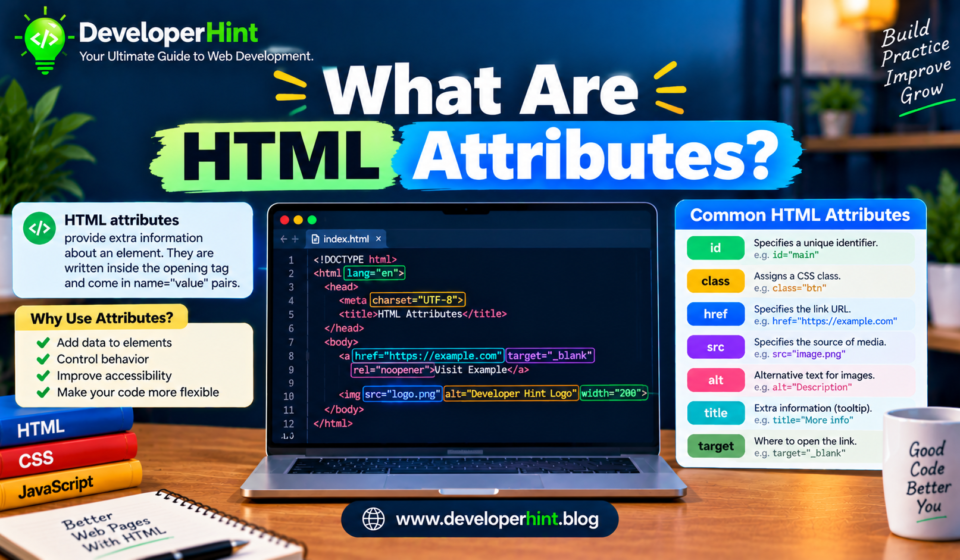

HTML attributes are extra pieces of information you add to an element to change how it behaves or how it is described. They are what turn a bare <a> tag into a working link, a plain <img> into a picture with a source, and a generic <div> into something CSS can target. Once you know how attributes work, a lot of HTML that looked like noise starts to make sense.
The basic syntax
An attribute is a name and a value joined by an equals sign, written inside the opening tag of an element. Several attributes can sit in the same tag, separated by spaces.
<a href="https://example.com" class="button" target="_blank">Visit the site</a>Here the a element has three attributes. The href says where the link goes, class gives it a name for styling, and target asks the browser to open the link in a new tab. Attributes only ever go in the opening tag, never in the closing one.
Always wrap values in quotes. HTML technically allows you to skip them for simple values, but the moment a value contains a space, the browser will read it as more than one attribute. Double quotes are the usual choice. Single quotes work too, so long as you use the same kind on both ends.
Global attributes you can use almost anywhere
Some attributes work on nearly every element. These are called global attributes. A few of them show up in almost every project.
id and class
The id attribute gives an element a unique name. No two elements on the same page should share an id, since it is meant to point to exactly one thing, such as a section a link can jump to or an element a script needs to find. The class attribute is looser. Many elements can share a class, and a single element can have several, separated by spaces. Classes are the main way CSS picks out groups of elements.
<p id="intro" class="lead highlight">Welcome to the page.</p>lang, title, and hidden
The lang attribute states the language of an element’s content, which helps screen readers pronounce it correctly. You usually set it once on the html element, but it can also be used on a single phrase in another language. The title attribute adds advisory text that many browsers show as a tooltip on hover. It is not a reliable way to deliver important information, since touch screens and keyboard users often never see it. The hidden attribute tells the browser not to display the element at all.
style and tabindex
The style attribute lets you write CSS directly on one element. It works, but it is hard to maintain, so most developers keep it for quick tests or values that are generated dynamically. The tabindex attribute controls whether an element can receive keyboard focus and where it falls in the tab order. Use it carefully, since a messy tab order makes a page frustrating to navigate without a mouse.
Attributes that belong to specific elements
Other attributes only make sense on certain elements. The href attribute is for links, src for images, scripts, and media, and alt for images. Form controls have their own set, such as type, name, placeholder, and required.
The alt attribute deserves a special mention. It holds a short text description of an image, which screen readers read aloud and browsers show if the image fails to load. Write it for someone who cannot see the picture. If an image is purely decorative, an empty alt="" tells assistive technology to skip it.
| Attribute | Used on | What it does | Best for |
|---|---|---|---|
| href | a, link | Sets the destination URL or file | Links and stylesheets |
| src | img, script, video, audio, iframe | Points to the resource to load | Embedding images, scripts, and media |
| alt | img | Provides a text alternative for the image | Accessibility and fallback text |
| class | Almost any element | Assigns one or more class names | Styling groups of elements with CSS |
| id | Almost any element | Gives the element a unique identifier | Anchor links and targeting one element |
| type | input, button, script | Sets the kind of input, button, or script | Choosing a text, email, or password field, for example |
| placeholder | input, textarea | Shows hint text inside an empty field | Short examples of the expected format |
Boolean attributes
Some attributes work like switches. They are either present or absent, and they do not need a value. These are called boolean attributes. Examples include disabled, required, checked, and readonly.
<input type="email" name="email" required>
<button type="submit" disabled>Send</button>
A common beginner trap is writing disabled="false" and expecting the button to be enabled. It will not be. The attribute’s presence is what counts, so the button is still disabled. To enable it, remove the attribute entirely.
Custom data attributes
When you need to attach your own information to an element, HTML gives you data attributes. Any attribute whose name starts with data- is yours to define, and it will not clash with anything built into the language. They are handy for passing small bits of information to JavaScript without cluttering the visible page.
<button data-user-id="42" data-role="admin">Edit user</button>const button = document.querySelector("button");
console.log(button.dataset.userId); // "42"
console.log(button.dataset.role); // "admin"Notice how the hyphenated name data-user-id becomes userId in JavaScript. The browser converts it to camel case for you. Values are always read back as strings, so convert them yourself if you need a number.
Common mistakes to avoid
Forgetting the quotes around a value that contains spaces is the most frequent error. Reusing the same id on several elements is a close second, and it tends to cause scripts to grab the wrong thing. Leaving out alt on images hurts accessibility, and stuffing important information into title hides it from many users. Finally, mixing up attribute names across elements, such as putting href on a button, leads to markup that looks fine but does nothing.
If you open a link with target="_blank", you will often see rel="noopener" added next to it. Modern browsers already treat these links as if noopener were set, but including it is harmless and keeps older browsers covered.
Why attributes matter for developers
Attributes are the hooks the rest of the web stack uses. CSS selects elements by class, id, and even attribute values. JavaScript reads and writes attributes to change what the page does. Accessibility tools rely on attributes like alt, lang, and the ARIA family to understand your content. Frameworks and CMS themes generate them constantly, so being able to read them quickly makes debugging much faster.
A good way to practice is to open any page in your browser’s developer tools, pick an element, and look at its attributes in the inspector. Try adding, editing, and deleting a few and watch what changes on the page. From there, the natural next step is learning how CSS selectors use those same attributes to style elements precisely.
Discover more from Developer Hint
Subscribe to get the latest posts sent to your email.
Content Disclosure
This content was created with the assistance of AI tools and thoroughly reviewed, fact-checked, and refined by a human editor to ensure accuracy, clarity, and usefulness for readers.Advertisements