
If you have spent any time learning HTML, you have probably heard the words tag and element used as if they meant the same thing. In casual conversation they often do, and nobody will correct you. But they are not identical, and the gap between them shows up in places that matter: reading documentation, working with JavaScript, and understanding why some HTML code behaves in ways you did not expect. This post sorts out HTML tags vs elements in plain terms.
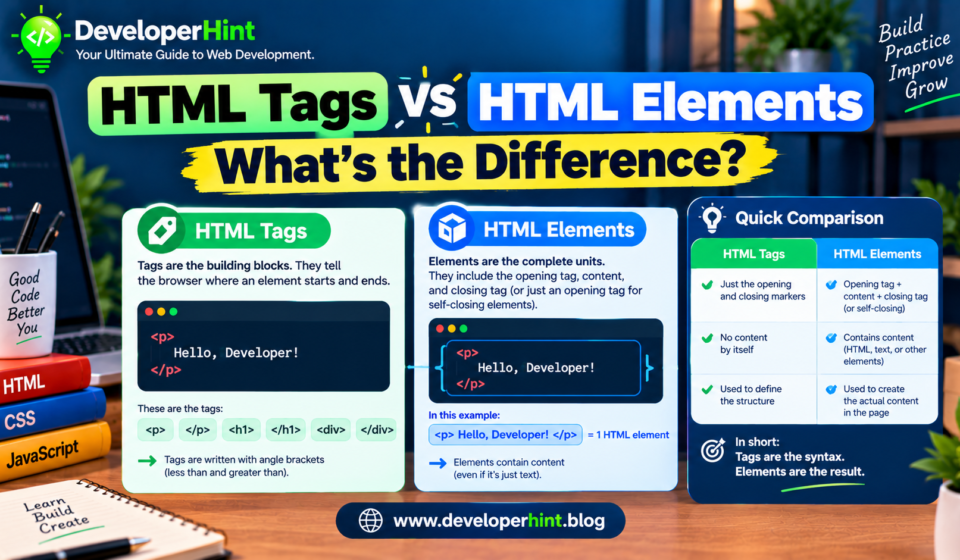
A tag is the piece of markup you type, like <p> or </p>. An element is the whole thing: the opening tag, the content inside it, and the closing tag, taken together as one unit. Tags are the syntax. Elements are what that syntax creates.
Here is a paragraph so you can see the pieces:
<p class="intro">Hello, world.</p>The <p class="intro"> part is the opening tag, and </p> is the closing tag. The text between them is the content. All of it together, from the first angle bracket to the last, is the paragraph element.
Breaking an element into parts
The opening tag
The opening tag starts with the element’s name wrapped in angle brackets. It is also where attributes go. In the example above, class="intro" is an attribute, a name and value pair that adds extra information or behavior to the element. Attributes always belong in the opening tag, never in the closing one.
The content
This is whatever sits between the opening and closing tags. It can be plain text, or it can be other elements. A list element contains list item elements, a table contains rows, and so on. This nesting is how HTML builds up a page from small parts.
The closing tag
The closing tag looks like the opening one but with a forward slash before the name. It tells the browser where the element ends. Forget it on an element that needs one, and the browser has to guess where the content should stop, which is how layouts end up swallowed by a paragraph or link that never closed.
Where the difference gets interesting
Void elements have only one tag
Some elements cannot have any content, so they have no closing tag at all. These are called void elements. Common ones include br, img, input, meta, and link. An img element is a single tag with attributes and nothing between.
<img src="photo.jpg" alt="A mountain at sunrise">You may see code that writes these with a trailing slash, as in <br />. That habit comes from XHTML. In HTML5 the slash is allowed but has no effect, so you can leave it out. What you should not do is write a closing tag like </br>, because void elements never take one.
Some elements exist without visible tags
This is the strongest proof that the two words differ. In HTML, some end tags are optional, and the browser’s parser will fill in structure you did not write. If you leave out the closing tag on a list item, the browser can still tell where it ends when the next one begins. If you write a table row directly inside a table, the parser inserts a tbody element for you, even though you never typed it. Open your browser’s developer tools and inspect the page, and you will see elements that have no matching tags in your source. The element exists in the document, but the tag does not exist in your file.
Elements are objects in the DOM
Once the browser parses your HTML, it builds a tree of objects called the DOM. Each element in your page becomes an element object you can work with in JavaScript. At that point you are no longer dealing with tags at all. You are dealing with elements, and that is why JavaScript methods are named things like getElementById and createElement, not anything with “tag” in the name.
const el = document.querySelector("p");

console.log(el.tagName);   // "P"
console.log(el.outerHTML); // the full element as a string
One small detail here: in an HTML document, tagName returns the element name in uppercase, even if you wrote it in lowercase in your markup. Tag names in HTML are not case sensitive, but lowercase is the convention and the one most style guides recommend.
Tags vs elements at a glance
| Term | What it means | Example | Use this word when |
|---|---|---|---|
| Tag | The markup syntax in angle brackets | <h2> and </h2> | Talking about what you type in the source code |
| Element | Opening tag, content, and closing tag as one unit | <h2>Title</h2> | Talking about the thing on the page, in CSS, or in JavaScript |
| Attribute | A name and value pair inside the opening tag | href="/about" | Describing extra settings on an element |
| Void element | An element with no content and no closing tag | <br> | Describing elements like img, input, and meta |
which word to use in practice
When you are writing or reading markup, say “tag” if you mean the literal angle-bracket syntax, such as “add a closing tag here.” When you are talking about what the browser shows, what CSS targets, or what JavaScript selects, say “element.” If you are unsure, element is usually the safer word. The official HTML specification and MDN both lean on “element” in nearly every explanation, because it is the more accurate concept.
That said, nobody is going to fail an interview or break a site by saying “the img tag.” Developers use the words loosely all the time, and you will always be understood. The distinction is worth knowing mainly so the documentation reads clearly and so the odd cases, like void elements and parser-inserted elements, make sense when you run into them.
Why this matters for developers
The tag versus element distinction is a small idea with a surprisingly wide reach. CSS selectors target elements, not tags. JavaScript manipulates elements, not tags. Debugging a layout often means asking whether an element is nested where you think it is, which is a question about the tree the browser built, not about the text you typed. If you understand that tags are only the way you describe elements to the browser, reading developer tools and writing selectors becomes much more natural.
A good exercise is to take a small HTML file, leave out a few optional closing tags on purpose, and then inspect the result in your browser’s developer tools. Seeing the parser fill in the gaps makes the idea stick far better than any definition does. From there, a natural next step is learning how CSS selectors pick out elements from that tree.
Discover more from Developer Hint
Subscribe to get the latest posts sent to your email.
Content Disclosure
This content was created with the assistance of AI tools and thoroughly reviewed, fact-checked, and refined by a human editor to ensure accuracy, clarity, and usefulness for readers.Advertisements