
Every web page you have ever visited sits on top of the same basic skeleton. HTML document structure is the set of rules and conventions that tell a browser what a file is, where the metadata lives, and which parts are meant to be seen. It looks like boilerplate you paste in once and forget, but each line in it does a specific job, and a few of them cause strange bugs when they are missing.
This guide goes through a standard HTML5 document from top to bottom, explains what each part is for, and finishes with a clean template you can reuse.
The skeleton of an HTML document
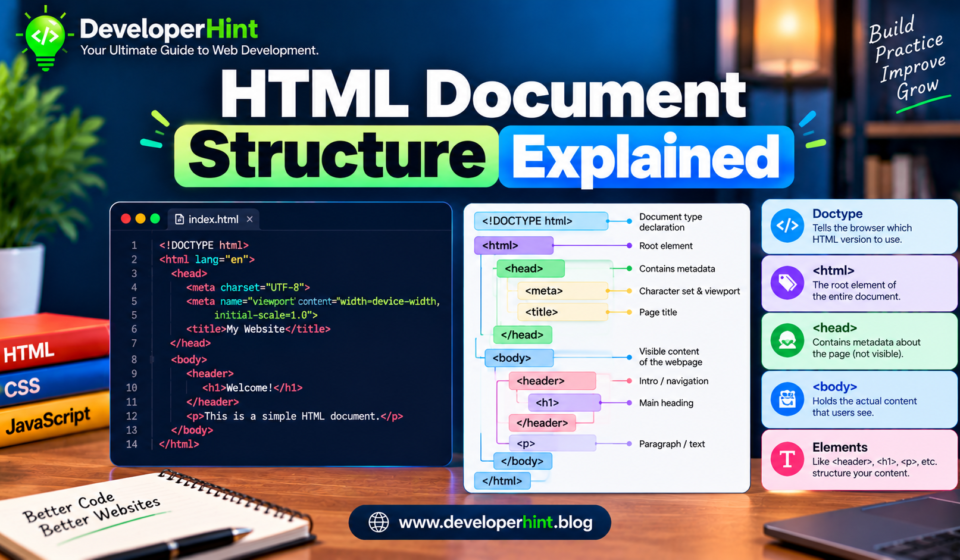
Here is a minimal but complete page. Read it first, and then we will take it apart.
<!DOCTYPE html>
<html lang="en">
  <head>
    <meta charset="UTF-8">
    <meta name="viewport" content="width=device-width, initial-scale=1.0">
    <title>Page title goes here</title>
    <meta name="description" content="A short summary of the page.">
    <link rel="stylesheet" href="styles.css">
  </head>
  <body>
    <header>
      <nav>...</nav>
    </header>
    <main>
      <h1>Main heading</h1>
      <p>Page content.</p>
    </main>
    <footer>
      <p>Footer content.</p>
    </footer>
    <script src="app.js" defer></script>
  </body>
</html>
The document has two main halves. The head holds information about the page, and the body holds everything the visitor actually sees.
The doctype declaration
The first line, <!DOCTYPE html>, is not really an HTML element. It is an instruction that tells the browser to render the page in standards mode. Leave it out and browsers fall back to quirks mode, a legacy behavior that exists to keep very old pages working. In quirks mode, layout details like box sizing and line height can behave differently from what the current specs describe, which is a classic source of “why does this look off” confusion. Older doctypes used to be long strings referring to specific HTML or XHTML versions. HTML5 reduced it to the short form above, and that is the only one you need.
The html element and the lang attribute
The html element wraps everything else and is the root of the document. The one attribute worth always setting on it is lang. Screen readers use it to choose the right pronunciation rules, browsers use it for features like translation prompts and spell checking, and search engines can use it as a hint about the page’s language. Use the correct code for your content, such as en for English or ar for Arabic. If the page is in a right-to-left language, you will usually want to set dir="rtl" as well.
What goes in the head
Nothing inside the head shows up on the page itself, but much of it shapes how the page loads, looks, and appears in search results.
Character encoding
The meta charset="UTF-8" tag tells the browser how to read the bytes in your file. It should come early in the head, because browsers need to know the encoding before they reach any text that depends on it. The HTML spec says the declaration must appear within the first 1024 bytes of the document. Without it, accented letters, Arabic script, or symbols like the copyright sign can turn into garbled characters.
The viewport tag
The viewport meta tag matters for phones. Without it, many mobile browsers pretend the screen is much wider than it is and then shrink the page to fit, which is why a desktop-only site looks tiny on a phone. The line width=device-width, initial-scale=1.0 tells the browser to match the real screen width. If you want your CSS media queries to behave the way you expect on mobile, you need this tag.
Title and meta description
The title element is the text in the browser tab and the headline that usually appears in search results, so it is worth writing carefully. Every page should have its own unique one. The meta description is a short summary that search engines may show under the title. Search engines do not always use what you write, but a good one gives you some control over how the page is presented.
Stylesheets, icons, and scripts
CSS links belong in the head so that styles load before the page is painted, which avoids a flash of unstyled content. Favicons use a link rel="icon" tag. Scripts are a different story. A plain script tag in the head blocks the parser while the file downloads and runs. Adding the defer attribute lets the browser keep parsing the HTML and run the script after the document is ready, which is why you will often see it in modern boilerplate.
What goes in the body
The body holds the visible page. You could build the whole thing from div elements, and it would display fine. But a page made only of divs tells the browser and assistive technology nothing about what each part means. That is the reason HTML5 introduced semantic elements.
Semantic elements and what they are for
| Element | What it represents | Best for |
|---|---|---|
| header | Introductory content for the page or a section | Site logo, page title, and top navigation |
| nav | A block of major navigation links | Main menus and table-of-contents blocks |
| main | The central content of the page | The part unique to this page, used once per page |
| article | A self-contained piece that makes sense on its own | Blog posts, news stories, and forum posts |
| section | A thematic grouping of content, usually with a heading | Chapters or distinct parts of a longer page |
| aside | Content related to, but separate from, the main content | Sidebars, pull quotes, and related links |
| footer | Closing content for the page or a section | Copyright notices, contact details, and secondary links |
A few of these trip people up. There should only be one visible main element on a page, and it should not sit inside an article, aside, header, footer, or nav. The section element is not a generic replacement for div. If you just need a wrapper for styling, div is still the right tool. And header and footer can appear more than once, because an article can have its own header and footer too.
Headings give the page an outline
Use one h1 for the main topic of the page, then h2 for major sections and h3 for subsections inside them. Screen reader users often navigate by jumping between headings, so skipping levels or picking a heading because of its size makes the page harder to use. If you want a heading to look smaller, change it with CSS and keep the correct level in the markup.
Common mistakes to avoid
The most frequent one is forgetting the viewport tag and then wondering why a responsive layout looks broken on a phone. Close behind it is leaving out the doctype, which can quietly change how your CSS behaves. Other regulars include using several h1 elements without a reason, building navigation out of plain divs, and placing a blocking script in the head with no defer. Running your page through the W3C Nu HTML Checker catches most of these in a few seconds.
Best for: choosing how much structure you need
For a quick experiment or a throwaway demo, the basic skeleton with a head, a body, and a single main is plenty. For a real site, add the semantic elements, because they cost you nothing and make the page more useful to screen readers and easier for you to read later. For a long article or documentation page, wrap the content in article, split it with section elements, and keep your heading levels in order.
Why document structure matters for developers
This is the foundation everything else sits on. CSS selectors, JavaScript DOM queries, accessibility tools, and search engine crawlers all read the structure you write, so a clean one makes each of those jobs easier. It also helps when you work with a CMS or a framework, since themes, templates, and components all generate this same skeleton behind the scenes. When a page behaves strangely, checking the doctype, the head, and the element nesting is often the quickest first step.
Paste the template above into a new file, open it in your browser, and start adding content to see how each part behaves. Once the skeleton feels familiar, the next logical step is learning how CSS targets these elements and builds layouts on top of them.
Discover more from Developer Hint
Subscribe to get the latest posts sent to your email.
Content Disclosure
This content was created with the assistance of AI tools and thoroughly reviewed, fact-checked, and refined by a human editor to ensure accuracy, clarity, and usefulness for readers.Advertisements