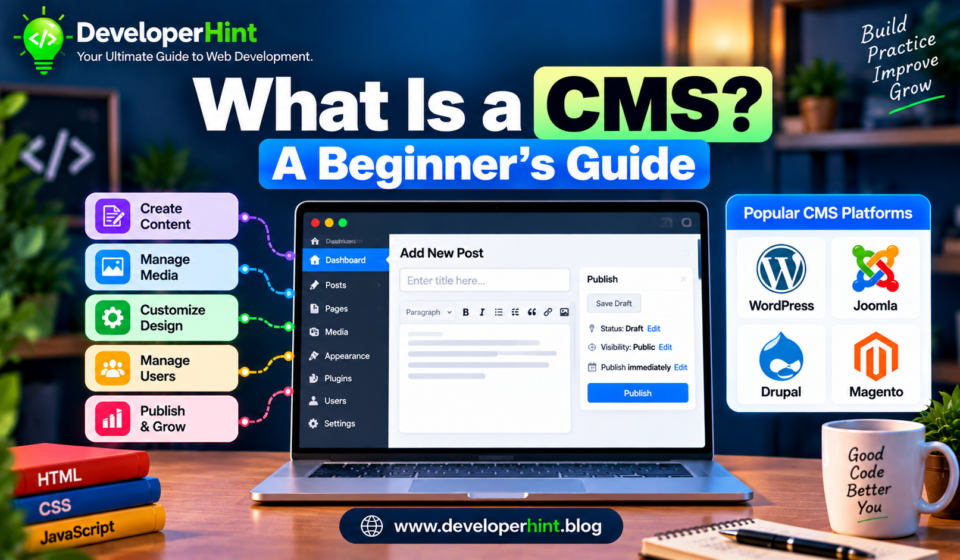

A CMS, short for content management system, is software that lets you create, edit, and publish website content without writing a new HTML file every time you want to change something. You log into a dashboard, type your post in an editor, press publish, and the site updates. If you have ever written a blog post in WordPress, you have already used one.
The idea sounds small, but it changed who gets to run a website. Before content management systems became common, changing a headline usually meant opening a code file, editing it by hand, and uploading it to a server. A CMS moves that work into a browser, so a writer, a shop owner, or a developer can all work on the same site without stepping on each other.
What a CMS actually does
At the simplest level, a CMS separates what your site says from how it looks. Your text, images, and page structure live in one place, and the design lives in another. That separation is why you can switch a theme on a WordPress site and keep all your posts, or add a new page and have it pick up the same header and footer as every other page.
Most systems also handle the chores that would otherwise eat your time. They manage user accounts and permissions, so an editor can publish posts while a contributor can only submit drafts. They keep a revision history, so you can roll back a bad edit. They create URLs, store media files, and often give you plugins or extensions for things like contact forms, search, and SEO settings.
How a CMS works behind the scenes
You do not need to know all of this to use a CMS, but it helps to have the picture in your head, especially if you plan to build or customize sites later.
The database holds the content
When you save a post, the CMS writes it to a database. WordPress, for example, stores posts, pages, comments, and settings in a MySQL or MariaDB database. The post does not exist as a standalone file anywhere. It is a set of rows that the software reads when someone asks for the page.
Templates decide how it looks
When a visitor loads a page, the CMS pulls the right content from the database and pours it into a template, which is a file that mixes HTML with a little code. The template decides where the title goes, how the sidebar looks, and what the footer says. The visitor receives a finished page and never sees any of this.
The admin area is the part you touch
The dashboard is the friendly layer on top. It gives you forms, editors, and menus that write to the database for you. Everything you click in there is a convenient way of changing data and settings that the templates will use on the next page load.
The main types of CMS
Not every CMS is built the same way, and the differences matter once you start choosing one.
Traditional (coupled) systems
A traditional CMS handles both the back end, where you manage content, and the front end, where visitors see it. WordPress, Drupal, and Joomla all work this way by default. Everything comes in one package, which makes them quick to set up and easy to understand.
Headless systems
A headless CMS keeps the content side and drops the built-in front end. It stores your content and hands it over through an API, and you build the website or app that displays it using whatever tools you like, such as React, Vue, or a mobile app. Strapi and Contentful are well-known examples. You get more freedom, but you also have to build the front end yourself.
Hosted site builders
Services like Wix and Squarespace bundle a CMS, hosting, and design tools into one subscription. You trade flexibility for convenience. Setup takes minutes, but you are working inside the platform’s rules and you cannot easily move your site elsewhere.
Popular CMS platforms compared
| CMS | Type | Hosting | Best for |
|---|---|---|---|
| WordPress | Traditional, open source | Self-hosted, or managed through WordPress.com | Blogs, business sites, and almost anything in between |
| Drupal | Traditional, open source | Self-hosted | Large sites with complex content structures and permissions |
| Joomla | Traditional, open source | Self-hosted | Community sites and portals that need built-in user management |
| Ghost | Publishing platform, open source | Self-hosted or Ghost’s own hosting | Writers and publishers who want memberships and newsletters |
| Strapi | Headless, open source | Self-hosted or Strapi Cloud | Developers building custom front ends or apps |
| Wix | Hosted site builder | Hosted by Wix | Small sites where speed of setup matters more than control |
WordPress is the one most beginners meet first, and for good reason. It first appeared in 2003 and, according to W3Techs, it runs a little over 40 percent of all websites. That size means a huge pool of themes, plugins, tutorials, and people who can help when you get stuck. Drupal is older, dating to 2001, and tends to appeal to teams who need fine control over how content is structured.
What a CMS looks like from a developer’s side
If you write code, the interesting part is that many CMS platforms expose their content through an API. WordPress has shipped with a REST API in core since version 4.7, so any WordPress site can act as a headless back end. This snippet fetches the five most recent posts from a site and prints their titles:
const site = "https://example.com";

fetch(`${site}/wp-json/wp/v2/posts?per_page=5`)
  .then((response) => response.json())
  .then((posts) => {
    posts.forEach((post) => {
      console.log(post.title.rendered);
    });
  })
  .catch((error) => console.error("Request failed:", error));
Swap in your own domain and you have the beginnings of a front end that reads from WordPress without using a WordPress theme at all. That is the headless idea in about ten lines.
How to choose the right CMS
Start with who will use it day to day. If the people updating the site are not developers, pick something with an editor they will actually enjoy, because a clumsy dashboard gets avoided and the site goes stale. If you are the only person touching it and you like writing code, a headless setup might suit you better.
Then think about how much you want to maintain. Self-hosted systems like WordPress give you control, but you are responsible for updates, backups, and security. Hosted builders take that off your plate at the cost of flexibility. Neither is wrong. They suit different situations.
If you are still unsure, here is a simple way to read the table above. Choose WordPress if you want the widest range of help and options. Choose Ghost if your site is mostly writing and you want newsletters built in. Choose Drupal if your content has a lot of structure and your team has the skills to manage it. Choose a headless CMS like Strapi if you already know what front end you want to build. Choose a hosted builder if you need something live this week and do not plan to customize it much.
A few beginner habits worth building early
Keep your CMS, themes, and plugins updated, since outdated plugins are a common way sites get compromised. Set up automatic backups before you need them. Install only the plugins you will actually use, because each one adds code to maintain and can slow your pages down.
Why this matters if you build for the web
Even if you never plan to be a CMS specialist, you will run into one sooner or later. Clients ask for WordPress sites, teams use headless setups to feed several apps from one source, and a lot of freelance work is really about customizing a theme or writing a small plugin. Knowing how content, templates, and the database fit together makes all of that easier to reason about.
A good next step is to install WordPress locally and look at how a theme pulls a post out of the database. After that, try the REST API example above against your own test site. Once you have seen the traditional and headless approaches side by side, choosing between them for a real project gets a lot less abstract.
Discover more from Developer Hint
Subscribe to get the latest posts sent to your email.
Content Disclosure
This content was created with the assistance of AI tools and thoroughly reviewed, fact-checked, and refined by a human editor to ensure accuracy, clarity, and usefulness for readers.Advertisements