
Before CSS Grid existed, building a two-column layout with a header and footer involved floats, clearfixes, and a lot of swearing. Today, the same layout takes about ten lines of CSS. That’s not an exaggeration.
CSS Grid is now supported by over 97% of browsers globally and has been production-ready for years. If you’re still reaching for float-based layouts or leaning on Flexbox to do things it wasn’t really designed for, Grid is the skill that will change how you think about CSS layouts.
This guide covers every important Grid property — container properties, item properties, and the utility functions that make Grid genuinely powerful — with practical examples throughout. It’s meant to be both a learning resource and a reference you can come back to.
What Is CSS Grid?
CSS Grid is a two-dimensional layout system, meaning it lets you control rows and columns simultaneously. That’s the core distinction from Flexbox, which works along a single axis at a time.
Grid is ideal for:
- Full page layouts (header, sidebar, content, footer)
- Dashboards with multiple sections
- Image galleries and card grids
- Any layout where you need items to align across both axes at once
A good mental model: use Grid when you’re thinking about the whole page structure, and use Flexbox when you’re aligning items inside a single component. Most real projects use both.
Creating a Grid Container
Grid starts with one declaration on a parent element:
.container {
  display: grid;
}
Every direct child of that element becomes a grid item. The container itself behaves like a block element on the outside — it sits on its own line and fills available width — but its children are now governed by Grid rules.
<div class="container">
  <div>Item 1</div>
  <div>Item 2</div>
  <div>Item 3</div>
</div>
By default, grid items stack in a single column — not much to look at yet. The real power kicks in once you start defining your columns and rows.
Grid Container Properties
These properties are applied to the container element and define the structure of the grid itself.
grid-template-columns
This is the property you’ll use most. It defines how many columns your grid has and how wide each one is.
/* Three fixed-width columns */
.container {
  display: grid;
  grid-template-columns: 200px 200px 200px;
}

/* Three equal flexible columns using fr units */
.container {
  grid-template-columns: 1fr 1fr 1fr;
}

/* Sidebar + main content layout */
.container {
  grid-template-columns: 250px 1fr;
}
The fr unit stands for “fraction of available space.” In the last example, the sidebar gets a fixed 250px and the content column gets everything that’s left. It’s one of the most useful units in CSS Grid.
grid-template-rows
Defines the height of each row. In many layouts you don’t need this — rows size to their content by default — but it’s useful when you need specific row heights or are building a full-page layout.
.container {
  grid-template-rows: 80px 1fr 60px;
}
In a full-page layout, this gives you an 80px header, a content area that fills remaining height, and a 60px footer.
gap
Creates space between grid cells. Much cleaner than adding margins to individual items.
/* Same gap on all sides */
.container {
  gap: 20px;
}

/* Different row and column gaps */
.container {
  row-gap: 20px;
  column-gap: 40px;
}
Note: gap only creates space between cells, not on the outside edges of the grid. If you need outer spacing, use padding on the container.
grid-template-areas
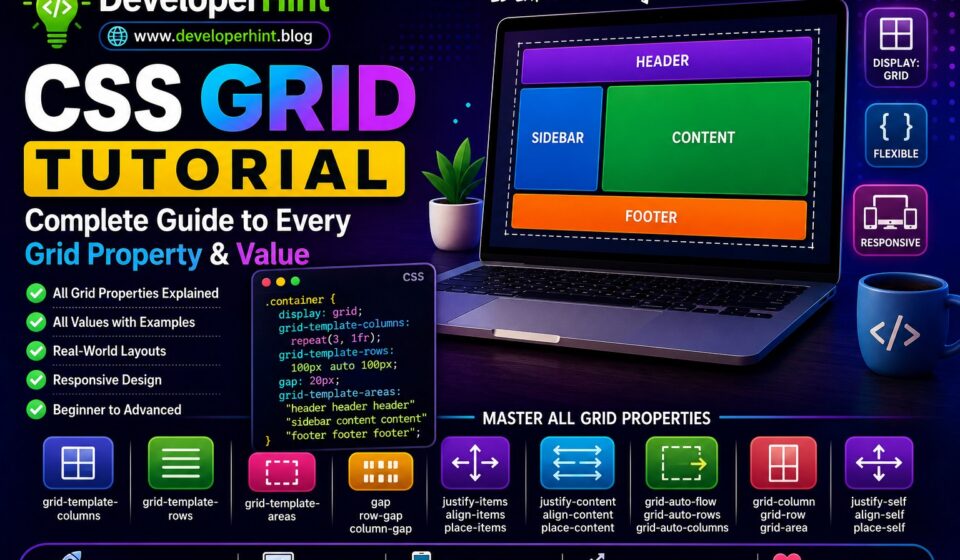
This property lets you draw your layout visually using named regions. It’s one of the most readable ways to define a page structure in CSS.
.container {
  display: grid;
  grid-template-columns: 250px 1fr;
  grid-template-rows: auto 1fr auto;
  grid-template-areas:
    "header  header"
    "sidebar content"
    "footer  footer";
}

.header  { grid-area: header; }
.sidebar { grid-area: sidebar; }
.content { grid-area: content; }
.footer  { grid-area: footer; }
The string layout in grid-template-areas is a visual map of your grid. Each row is a quoted string, and each word is a cell. Repeating a name across cells makes that element span multiple columns or rows. Using a dot (.) leaves a cell empty.
justify-items and align-items
justify-items aligns grid items horizontally within their cells. align-items aligns them vertically. The default value for both is stretch, which makes items fill their cell completely.
.container {
  justify-items: center; /* start | center | end | stretch */
  align-items: center;   /* start | center | end | stretch */
}

/* Shorthand for both at once */
.container {
  place-items: center;
}
These affect how items sit inside their allocated grid cell — not how the grid itself is positioned.
justify-content and align-content
These align the entire grid within its container — useful when the grid tracks are smaller than the container itself.
.container {
  justify-content: center; /* start | center | end | space-between | space-around | space-evenly */
  align-content: center;

  /* Shorthand */
  place-content: center;
}
A practical scenario: if your grid columns add up to 600px but the container is 1000px wide, justify-content: center centers that 600px grid in the available space.
grid-auto-columns and grid-auto-rows
When Grid creates tracks automatically — beyond what you’ve explicitly defined — these properties control the size of those implicit tracks.
.container {
  grid-template-rows: 100px;  /* Only the first row is explicit */
  grid-auto-rows: 80px;       /* All additional rows will be 80px */
}
This is especially useful for dynamic content like blog post feeds or search results, where you don’t know how many rows you’ll have ahead of time.
grid-auto-flow
Controls the direction in which auto-placed items fill the grid.
.container {
  grid-auto-flow: row;    /* Default — fills across rows first */
  grid-auto-flow: column; /* Fills down columns first */
  grid-auto-flow: dense;  /* Fills gaps by placing smaller items into earlier spaces */
}
dense is particularly useful for galleries with items of varying sizes — it attempts to fill visual gaps by reordering items to fit smaller pieces into leftover spaces. Be aware that this can change the visual order of items, which may be a problem for accessibility if the reading order matters.
Grid Item Properties
These properties are applied directly to individual grid items to control their placement and alignment.
grid-column and grid-row
These let you explicitly place an item across multiple columns or rows using grid line numbers.
/* Span from column line 1 to line 3 (occupies 2 columns) */
.item {
  grid-column: 1 / 3;
}

/* Span 2 rows from the item's starting position */
.item {
  grid-row: span 2;
}

/* Place a hero banner across all 3 columns */
.hero {
  grid-column: 1 / -1; /* -1 means the last grid line */
}
The -1 trick is worth remembering — it always refers to the last explicit grid line, so 1 / -1 makes an item span the full width of the grid regardless of how many columns you have.
grid-area
Assigns an item to a named area defined in grid-template-areas:
.sidebar {
  grid-area: sidebar;
}
It can also be used as shorthand for row-start / column-start / row-end / column-end, but named areas are much more readable and recommended for layout work.
justify-self and align-self
Override justify-items and align-items for a single item, without affecting the rest of the grid.
.special-item {
  justify-self: end;   /* start | center | end | stretch */
  align-self: start;

  /* Shorthand */
  place-self: start end;
}
Grid Functions: repeat(), minmax(), auto-fit, auto-fill
These are where Grid becomes really powerful for responsive design.
repeat()
Avoids repetition when defining equal columns or rows:
/* Instead of this */
grid-template-columns: 1fr 1fr 1fr 1fr;

/* Write this */
grid-template-columns: repeat(4, 1fr);

/* Works with mixed values too */
grid-template-columns: repeat(3, 1fr) 200px;
minmax()
Sets a minimum and maximum size for a track. The column will never shrink below the minimum or grow beyond the maximum.
/* Columns that are at least 200px but can grow to fill available space */
grid-template-columns: repeat(3, minmax(200px, 1fr));
This is the building block for responsive grids without media queries.
auto-fit vs auto-fill
Both keywords work inside repeat() to create a responsive number of columns based on available space. The difference between them is subtle but important — and it only shows up when you have fewer items than the grid could hold.
/* auto-fit: stretches items to fill available space, collapses empty tracks */
.grid-fit {
  grid-template-columns: repeat(auto-fit, minmax(250px, 1fr));
}

/* auto-fill: keeps empty tracks at their defined size, items don't stretch */
.grid-fill {
  grid-template-columns: repeat(auto-fill, minmax(250px, 1fr));
}
Here’s the practical difference: if you have 2 items in a grid that could fit 4 columns, auto-fit collapses the 2 empty tracks and stretches your 2 items to fill the full width. auto-fill keeps those 2 empty tracks and your items stay at their natural size.
For card grids and galleries, auto-fit usually looks better — items fill the available space naturally. For dashboards or product listings where consistent item sizes matter, auto-fill gives you more predictable results. If your grid is always full, it makes no difference — pick either one.
Putting It All Together: Real-World Examples
Responsive Card Grid (No Media Queries)
.cards {
  display: grid;
  grid-template-columns: repeat(auto-fit, minmax(250px, 1fr));
  gap: 24px;
}
This is one of the most useful patterns in modern CSS. The grid automatically calculates how many 250px columns fit in the available space, and when the viewport narrows, columns drop away one by one until you’re down to a single column on mobile. No @media queries, no JavaScript.
Full Page Layout with Named Areas
.page {
  display: grid;
  grid-template-columns: 260px 1fr;
  grid-template-rows: 70px 1fr 60px;
  grid-template-areas:
    "header  header"
    "sidebar content"
    "footer  footer";
  min-height: 100vh;
  gap: 0;
}

.header  { grid-area: header; }
.sidebar { grid-area: sidebar; }
.content { grid-area: content; }
.footer  { grid-area: footer; }
A complete page structure in about 15 lines. The header and footer span the full width. The sidebar is fixed at 260px. The content takes everything else. Try doing that cleanly with floats.
Making the Layout Responsive
@media (max-width: 768px) {
  .page {
    grid-template-columns: 1fr;
    grid-template-rows: auto;
    grid-template-areas:
      "header"
      "content"
      "sidebar"
      "footer";
  }
}
On mobile, the sidebar drops below the main content with just a few lines. Named areas make responsive layout reordering much more readable than juggling line numbers.
Common Mistakes Worth Knowing About
Using fixed widths instead of fr units
This is the most common beginner mistake. If your columns are set to fixed pixel values, your layout will overflow or break on smaller screens. Prefer fr units and minmax() so columns scale naturally.
/* Fragile — breaks on small screens */
grid-template-columns: 300px 300px 300px;

/* Responsive — adjusts to available space */
grid-template-columns: repeat(3, 1fr);

/* Even better — responsive without media queries */
grid-template-columns: repeat(auto-fit, minmax(250px, 1fr));
Using margins instead of gap
Adding margin to individual grid items for spacing gets messy fast — you end up needing negative margins on the container to compensate for outer edges. gap handles spacing between cells cleanly and only adds space where you actually want it.
Reaching for Grid when Flexbox fits better
Grid is powerful but it’s not always the right tool. Navbars, button groups, toolbars, and form fields are usually better handled by Flexbox. If you’re only dealing with items in a single row or column and you don’t need the other axis, Flexbox is simpler and more appropriate.
Forgetting grid-auto-rows on dynamic content
If you’re building a card grid and your cards vary in height, rows without an explicit height can end up looking inconsistent. Setting grid-auto-rows or using minmax() on rows keeps things visually predictable.
CSS Grid Quick Reference
Container Properties
| Property | What It Does |
|---|---|
display: grid | Activates Grid on the container |
grid-template-columns | Defines column count and widths |
grid-template-rows | Defines row heights |
grid-template-areas | Names layout regions visually |
gap | Space between cells |
row-gap / column-gap | Separate row and column spacing |
justify-items | Horizontal alignment inside cells |
align-items | Vertical alignment inside cells |
place-items | Shorthand for both alignment axes |
justify-content | Horizontal alignment of the whole grid |
align-content | Vertical alignment of the whole grid |
place-content | Shorthand for grid-level alignment |
grid-auto-columns | Size for implicitly created columns |
grid-auto-rows | Size for implicitly created rows |
grid-auto-flow | Direction items fill the grid |
Item Properties
| Property | What It Does |
|---|---|
grid-column | Column span using line numbers |
grid-row | Row span using line numbers |
grid-area | Assigns item to a named area |
justify-self | Horizontal alignment for one item |
align-self | Vertical alignment for one item |
place-self | Shorthand for individual alignment |
Final Thoughts
CSS Grid has a reputation for being complex, and there’s some truth to that — there are a lot of properties. But in practice, most layouts only need a handful of them. If you understand grid-template-columns, grid-template-areas, gap, repeat(), minmax(), and the difference between auto-fit and auto-fill, you can build virtually any layout you’ll encounter in the real world.
The best way to get comfortable with Grid is to rebuild layouts you’ve already built with floats or Flexbox. Take an existing page structure and rewrite it using Grid. The comparison will make the power immediately obvious — and the concepts will stick far better than reading about them.
Grid and Flexbox aren’t competitors. Once you stop thinking of them as alternatives and start treating them as complementary tools — Grid for structure, Flexbox for alignment within components — your CSS becomes cleaner, shorter, and a lot easier to maintain.
Discover more from Developer Hint
Subscribe to get the latest posts sent to your email.
Content Disclosure
This content was created with the assistance of AI tools and thoroughly reviewed, fact-checked, and refined by a human editor to ensure accuracy, clarity, and usefulness for readers.Advertisements