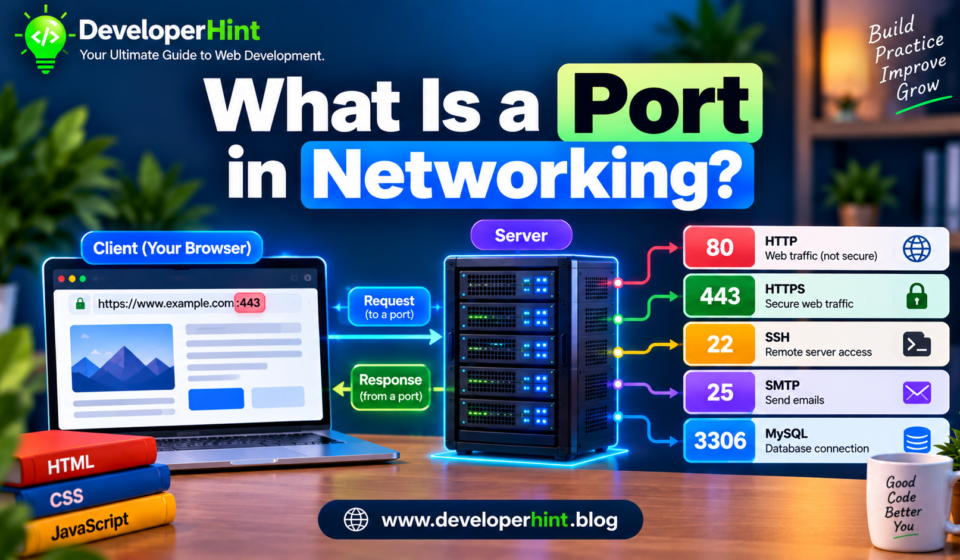

A single computer can run a web server, a database, an SSH service, and a dozen other programs all at the same time, and every one of them is reachable at the same IP address. So when a packet arrives, how does the machine know which program it’s meant for?
That’s what a port is for. It’s a number attached to every network connection that tells the operating system where to deliver the incoming data. The usual analogy is an apartment building: the IP address is the street address, and the port is the apartment number. The mail carrier can find the building without it, but without the apartment number, nobody knows who the letter belongs to.
How Ports Actually Work
A port is a 16-bit number, which means the range runs from 0 to 65535. Ports are tied to a transport protocol, either TCP or UDP, and each protocol has its own separate set. TCP port 53 and UDP port 53 are technically different things, even though DNS happens to use both.
When a program wants to receive connections, it asks the operating system to listen on a specific port. If another program already claimed that port, the request fails. This is the origin of one of the most familiar errors in web development, and we’ll get to it shortly.
The pairing of an IP address and a port is called a socket address, and you’ll see it written with a colon between the two:
192.168.1.20:3000
203.0.113.10:443
Every connection is identified by four values together: the source IP, the source port, the destination IP, and the destination port. That’s how your machine can have ten browser tabs open to the same website at once without mixing up the responses.
Where the Browser’s Port Comes From
You know that the server is listening on port 443, but your browser needs a port too. It doesn’t ask you for one. The operating system picks a random high-numbered one for each outgoing connection, usually from the range 49152 to 65535, and releases it when the connection closes. These are called ephemeral ports, and you’ll only notice them if you start inspecting network traffic with a tool like Wireshark or the Network tab in DevTools.
The Three Port Ranges
The numbers aren’t assigned randomly. They’re split into three ranges by IANA, the organization that maintains the official registry.
| Range | Name | Typical Use |
|---|---|---|
| 0 to 1023 | Well-known ports | Standard services like HTTP, HTTPS, SSH, and DNS |
| 1024 to 49151 | Registered ports | Applications and databases, such as MySQL and PostgreSQL |
| 49152 to 65535 | Dynamic or ephemeral ports | Temporary client-side ports assigned per connection |
On Linux and macOS, binding to a port below 1024 normally requires administrator privileges. That rule exists for historical security reasons, and it’s the reason a Node.js app that works fine on port 3000 throws a permission error the moment you try to run it on port 80 without sudo.
Ports You’ll See Constantly
You don’t need to memorize the full registry, which has thousands of entries. A short list covers nearly everything a web developer touches.
| Port | Service | Notes |
|---|---|---|
| 22 | SSH | Remote login and secure file transfer |
| 25 | SMTP | Sending email between servers |
| 53 | DNS | Mostly UDP, with TCP for larger responses |
| 80 | HTTP | Unencrypted web traffic |
| 443 | HTTPS | Encrypted web traffic; HTTP/3 uses UDP on this port too |
| 3306 | MySQL | Default database port |
| 5432 | PostgreSQL | Default database port |
| 6379 | Redis | Default cache and data store port |
| 27017 | MongoDB | Default database port |
Those are defaults, not laws. A database can be configured to listen on any port, and security-conscious setups sometimes move SSH off port 22 to cut down on automated login attempts. Still, if you see 5432 in a connection string, you can safely assume PostgreSQL without reading the rest.
Development tools have their own informal conventions too. Express and Create React App tend to default to 3000, Vite uses 5173, Django uses 8000, and plenty of backend frameworks land on 8080. Nothing official backs these up. They’re just numbers high enough to avoid the privileged range and unlikely to collide with a system service.
Why You Don’t See Ports in Most URLs
Every URL has a port, whether it’s written out or not. When you visit https://developerhint.com, your browser connects to port 443 because that’s the default for HTTPS, and it hides the number since there’s nothing useful in showing it. The same goes for port 80 with plain HTTP.
The number only appears when a server runs on something non-standard:
http://localhost:3000
https://staging.example.com:8443
If you want a closer look at where the port fits in the rest of a web address, our guide to URL structure covers every segment.
Running Your Own Server on a Port
The clearest way to see this in action is to claim one yourself. Here’s a minimal Node.js server listening on port 3000:
const http = require("http");

const server = http.createServer((req, res) => {
    res.end("Hello from port 3000");
});

server.listen(3000, () => {
    console.log("Listening on http://localhost:3000");
});
Run it, open http://localhost:3000, and the response comes back. Now open a second terminal and start the same file again. You’ll get this:
Error: listen EADDRINUSE: address already in use :::3000Two programs can’t listen on the same port at the same time, so the operating system refuses the second one. Nearly every developer meets this error within their first few weeks, usually because a previous dev server never shut down properly.
Fixing “Port Already in Use”
You have two options. The quick one is to pick a different port. The better one is to find out what’s holding the current one, especially if you didn’t expect anything to be running there.
On macOS or Linux, this shows the process using port 3000:
lsof -i :3000The output includes a process ID, which you can then stop with kill:
kill 12345On Windows, the equivalent in Command Prompt is:
netstat -ano | findstr :3000
taskkill /PID 12345 /F
Check what the process actually is before killing it. Occasionally the thing sitting on your port is a different project you forgot about, or something that matters.
localhost, 127.0.0.1, and 0.0.0.0
When you run a server locally, the address it binds to matters as much as the port. Binding to 127.0.0.1, which is what localhost resolves to, means only your own machine can reach it. Binding to 0.0.0.0 means the server accepts connections on every network interface, so other devices on your network can connect too.
That’s useful when you want to test a site on your phone over the same Wi-Fi. It’s also a quiet way to expose a development server, with debug tools and no authentication, to everyone on a coffee shop network. Most dev servers default to localhost-only for exactly that reason, and it’s worth knowing which setting you’re using before you change it.
Ports and Firewalls
A firewall decides which ports can receive traffic from outside. A typical production web server opens 80 and 443 to the world, keeps 22 restricted to specific IP addresses or a VPN, and leaves database ports closed entirely to the public internet. A PostgreSQL instance listening on 5432 doesn’t need to be reachable by anyone except the application server in front of it.
This explains a common deployment headache. An app runs perfectly on your machine, then times out when you deploy it, and the cause turns out to be that the cloud provider’s firewall rules never allowed traffic on the port you chose. If a connection hangs rather than failing immediately, a blocked port is one of the first things to check. A refused connection usually means nothing is listening on that port, while a hang usually means something is silently dropping the packets on the way.
Ports in a Real Stack
A common setup puts Nginx on ports 80 and 443 in front of a Node.js application running on 3000, which talks to PostgreSQL on 5432. Only the first pair is exposed publicly. The browser never connects to port 3000 directly, and it certainly never reaches the database. That’s also why a 502 Bad Gateway from Nginx usually means it couldn’t get a valid response from whatever is supposed to be listening on the port behind it, and a 504 means that service took too long to answer. If you’re comparing the two, our HTTP status codes guide breaks down the difference.
Once you can trace a request through those port numbers, deployment stops feeling like guesswork. When something breaks, you can ask a specific question: is the service listening, is the port open, and is the right traffic being forwarded to it. Those three questions solve a surprising share of the problems that look much more mysterious at first glance.
Discover more from Developer Hint
Subscribe to get the latest posts sent to your email.
Content Disclosure
This content was created with the assistance of AI tools and thoroughly reviewed, fact-checked, and refined by a human editor to ensure accuracy, clarity, and usefulness for readers.Advertisements