
If you’re getting started with JavaScript or Node.js, you’ve probably typed npm install a dozen times without thinking twice about it — and then run into a tutorial that suddenly says npx create-vite instead, leaving you wondering if you missed something. Between npm, npx, npm install, and npm run, it’s easy to feel like there are more commands here than you can keep straight.
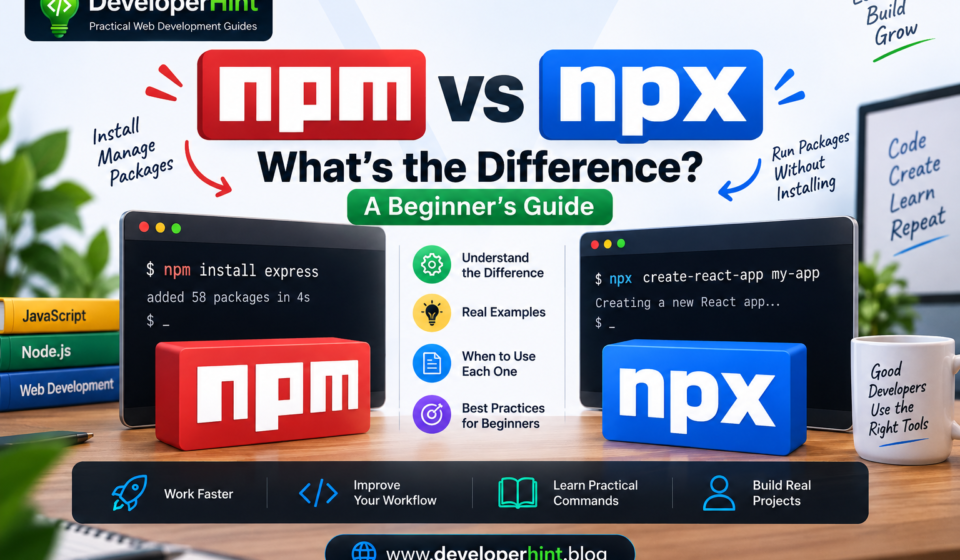
The actual difference is much simpler than it looks: npm is mainly about managing packages and your project’s dependencies, while npx is about running them. Once that distinction clicks, most of the confusion clears up.
What Is npm?
npm stands for Node Package Manager, and it’s the default package manager that ships with Node.js. It handles installing, removing, and updating packages, managing your project’s dependencies, running scripts, and publishing your own packages if you ever build one.
npm install lodashThat command tells npm to pull the lodash package from the npm registry — a massive public collection of JavaScript packages — and install it into your project. Once installed, packages live inside a node_modules folder alongside your package.json and package-lock.json files. A package itself is just code someone else has already written and published, so instead of building your own date-formatting library from scratch, you can install one that already exists and get back to building your actual project.
What Is npx?
npx is a command-line tool that comes bundled with modern npm installations, and its job is executing packages rather than installing them for long-term use. That’s why you’ll see commands like this when scaffolding a new project:
npx create-viteWithout npx, running a command-line package would usually mean installing it globally first and then running it separately. npx skips that step — it locates the package, runs it, and if the package is already installed locally in your project, it uses that local version directly.
This matters more than it might seem. Installing tools globally on your machine can quietly create version conflicts between projects that need different versions of the same tool. npx sidesteps that by letting you run a project-specific version instead, which keeps your tooling isolated and your projects easier to reason about.
The Core Difference, in One Line
npm manages. npx executes. That’s really the whole distinction, and it’s worth keeping in your head as the default mental model whenever you’re not sure which one a tutorial means.
| Feature | npm | npx |
|---|---|---|
| Main purpose | Manage packages and dependencies | Execute packages |
| Installs packages | Yes | Not its primary purpose |
| Runs package executables | Often through scripts | Yes, directly |
| Manages dependencies | Yes | No |
| Good for one-off commands | Not typical | Yes |
| Common example | npm install express | npx create-vite |
They’re not competing with each other, either — npm install react means “add React to my project,” while npx some-tool means “run this package’s command right now.” Most real projects use both, just for different jobs.
Commands You’ll Actually Use
A handful of npm commands cover most of what you’ll need day to day. npm init starts an interactive setup for a new package.json (or add -y to accept the defaults instantly). npm install with no package name reads your existing package.json and installs everything listed there — this is what you run right after cloning a project from GitHub. npm install package-name (or the shorthand npm i package-name) adds a specific package to your project. Adding -D, as in npm install -D vite, installs it as a development dependency — something your project needs while building or testing, like a bundler or linter, but not something the live application depends on at runtime.
Beyond installing, npm also runs whatever scripts are defined in your package.json:
{
  "scripts": {
    "dev": "vite",
    "build": "vite build"
  }
}
npm run devThat command tells npm to look in the scripts section and run whatever’s mapped to dev. When you’re done with a package, npm uninstall package-name removes it, and npm update updates your installed packages to newer compatible versions.
npx, by comparison, is mostly used for one-off or project-scaffolding commands — things like npx create-vite to start a new project, or npx eslint . and npx prettier . to run tools without installing them globally first.
The Files You’ll See in Every Node Project
Three files and folders show up in nearly every Node.js project, and it’s worth knowing what each one actually does. package.json describes your project — its name, version, scripts, and dependencies — and it’s what lets another developer clone your repo and run npm install to get everything they need. package-lock.json records the exact dependency tree npm used, which keeps installations consistent across different machines and environments; you’ll generally want to commit this file to Git rather than ignore it. And node_modules is where your installed packages actually live — it’s not something you’d normally edit by hand, since any changes you want belong in package.json, managed through npm itself.
A Typical Workflow, Start to Finish
Here’s how these pieces usually show up together in practice. After cloning a project from GitHub, you’d run:
git clone <repository>
cd my-project
npm install
npm run dev
git clone downloads the project, npm install pulls in every dependency listed in its package.json, and npm run dev starts whatever development script the project defines. If you later need a one-off command-line tool the project doesn’t already depend on — say, a code generator or a scaffolding tool — that’s when npx some-tool comes in, without you needing to install anything globally first.
Vite is a good real-world example, since you’ll see both commands associated with starting a new project. The current official way is npm create vite@latest, and you’ll also still see npx create-vite floating around in older tutorials — both ultimately run the same scaffolding tool. It’s worth checking Vite’s own documentation rather than assuming an older tutorial’s exact command is still the current recommendation, since these tools do update their setup instructions over time.
Local vs. Global Packages
A local package belongs to one specific project — running npm install vite installs it into that project’s node_modules, and it’s only available there. A global package, installed with the -g flag like npm install -g some-tool, becomes available anywhere on your machine’s command line. Global installs have their place for certain general-purpose tools, but for anything tied to a specific project, local installation is usually the better default — it keeps each project’s tooling self-contained and avoids the version conflicts that global installs can quietly introduce.
A Few Mistakes Worth Avoiding
Installing everything globally out of habit is a common one — before running npm install -g, it’s worth asking whether the package actually needs to be available system-wide, or whether a local install would serve the project better. Deleting package.json because of a confusing error is another mistake to avoid, since that file holds your project’s dependencies and scripts — losing it causes far more problems than it solves. Reaching for a full node_modules wipe and reinstall as the first response to every error is worth resisting too; it occasionally fixes a genuinely corrupted install, but it shouldn’t replace actually reading the error message first. And it’s worth pausing before pasting an unfamiliar npx command from a tutorial — a quick check into what the package does and whether it’s modifying your files is a small habit that pays off.
Wrapping Up
Once you strip away the unfamiliar syntax, the difference between npm and npx comes down to one sentence: npm manages your packages, and npx runs them. npm install gets dependencies into your project, npm run executes the scripts defined in package.json, and npx runs a package’s command directly, often without installing anything permanently at all.
You don’t need to memorize every flag and command today — you’ll pick up the ones you use often just by using them. What matters more, especially early on, is understanding what each command is actually doing to your project rather than pasting commands on faith. That habit alone will save you more debugging time than memorizing the full npm command list ever could.
Discover more from Developer Hint
Subscribe to get the latest posts sent to your email.
Content Disclosure
This content was created with the assistance of AI tools and thoroughly reviewed, fact-checked, and refined by a human editor to ensure accuracy, clarity, and usefulness for readers.Advertisements