
Messy code slows everyone down. It’s harder to scan, easier to introduce a stray bracket or missing semicolon into, and it makes code review take longer than it needs to. None of that has much to do with whether the code actually works, it’s purely about how easy it is to read.
The good news is that VS Code handles formatting well, and you’ve got a few different ways to do it depending on how hands-on you want to be. This guide covers the shortcuts, the settings, and how to get Prettier doing the work automatically.
Why formatting actually matters
Consistent formatting isn’t just a cosmetic preference. It lets you read code faster since your eyes aren’t adjusting to different spacing and bracket styles every few lines, it helps you catch syntax mistakes since misaligned code tends to visually stand out, and it keeps a codebase looking like one person wrote it even when ten people did. Most modern teams expect this by default, and VS Code makes it close to effortless to keep up with.
Format a document with a keyboard shortcut
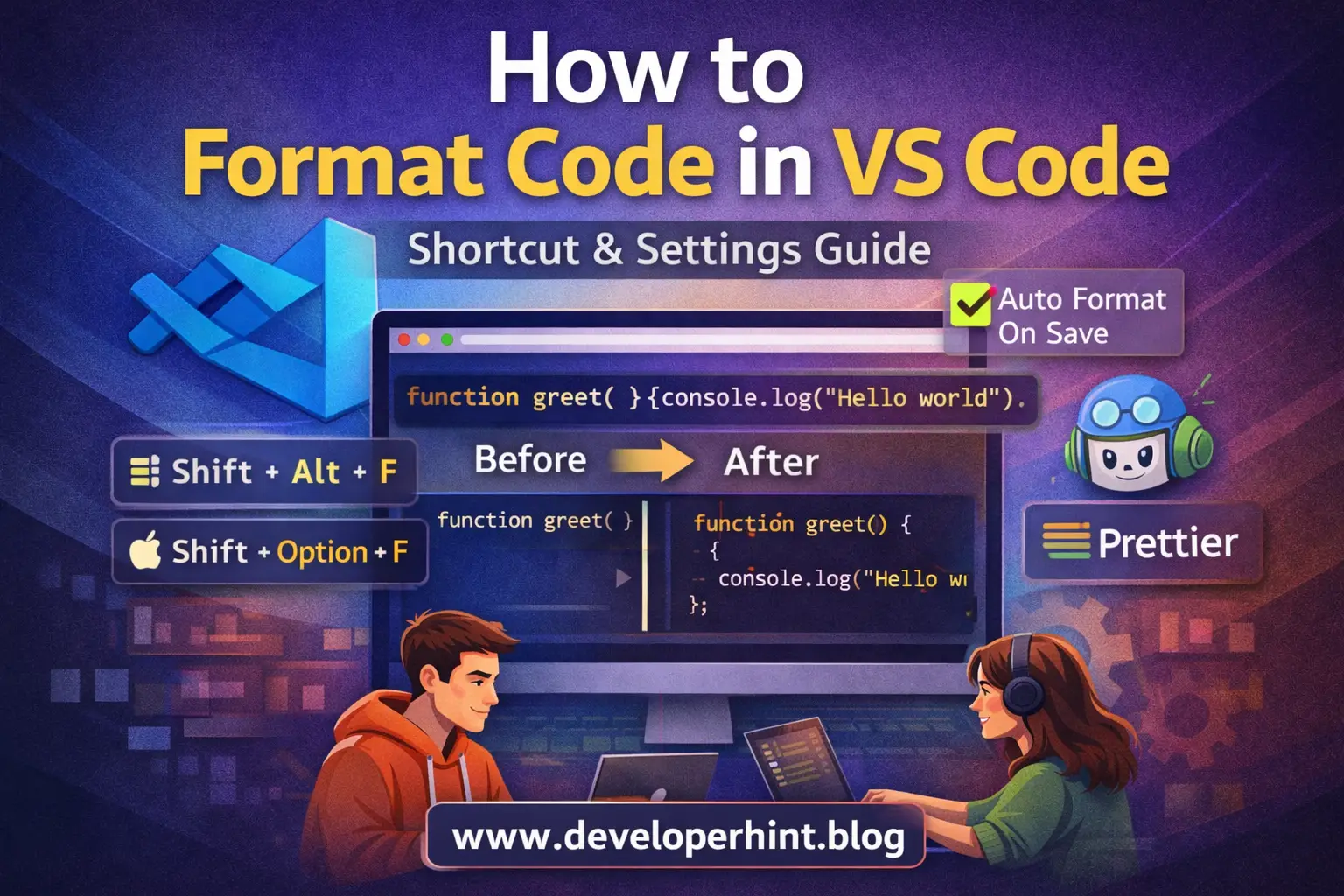
The fastest way to format an entire file is a single keyboard shortcut. On Windows or Linux, that’s Shift + Alt + F. On macOS, it’s Shift + Option + F. Either one reformats the whole open file instantly, based on whatever formatter is currently set as default for that language.
Format just a selection
Sometimes you only want to clean up one block without touching the rest of the file, especially in a large file where a full reformat would create a noisy diff. Select the code you want formatted, right-click, and choose Format Selection. Only the highlighted portion gets touched.
Format from the Command Palette
If you’d rather not memorize a shortcut, or you’re on a keyboard layout where it doesn’t map cleanly, the Command Palette works just as well. Press Ctrl + Shift + P on Windows or Linux, or Cmd + Shift + P on macOS, then type Format Document and press enter. Same result as the shortcut, just found a different way.
Turn on format on save
Manually formatting every file eventually gets tedious, which is where format on save earns its keep. Once it’s enabled, VS Code reformats a file automatically every time you save it, so formatting stops being something you have to remember to do at all.
To turn it on, open Settings with Ctrl + ,, search for Format On Save, and enable the Editor: Format On Save option. From that point forward, saving a file and cleaning it up happen in the same keystroke.
Setting up Prettier
Prettier is the most widely used formatting extension for VS Code, and it’s usually the first thing worth installing if you don’t already have a formatter set up.
To install it, open the Extensions panel with Ctrl + Shift + X, search for Prettier – Code formatter, and install it. From there, open Settings, search for Default Formatter, and select Prettier from the list. Once that’s set, VS Code reaches for Prettier by default any time you trigger a format, whether that’s through the shortcut, the Command Palette, or format on save.
What Prettier actually does
Here’s a small example of what changes. Before formatting, a function might look like this, cramped and inconsistent:
function greet( ){console.log("Hello world")}After Prettier runs, the same function is properly spaced and indented:
function greet() {
  console.log("Hello world");
}
Same code, same behavior, considerably easier to read.
Setting a formatter per language
VS Code also lets you assign a specific formatter to a specific language, which is useful if you want Prettier handling JavaScript but a different formatter handling something like Python or Go. That’s configured in your settings file, like this:
{
  "[javascript]": {
    "editor.defaultFormatter": "esbenp.prettier-vscode"
  }
}
The same pattern works for HTML, CSS, JSON, and most other languages VS Code supports, just swap the language identifier in the brackets.
Common formatting problems and how to fix them
If formatting doesn’t seem to be doing anything when you trigger it, there are a few usual suspects. Check that you actually have a formatter installed, since VS Code can’t format without one. Confirm a default formatter is set for the language you’re working in. And check the language mode shown in the bottom-right corner of the window, since VS Code sometimes misdetects a file’s language, and a formatter configured for JavaScript won’t fire on a file VS Code thinks is plain text.
If formatting runs but produces odd or unexpected results, it’s often a sign that two formatting extensions are installed and quietly conflicting with each other. Disabling the one you don’t want active usually resolves it.
A few habits worth keeping
A handful of small habits go a long way here. Lean on Prettier for consistency rather than manually matching a style by eye. Turn on format on save so it happens without having to think about it. Add a project-level .prettierrc file so formatting rules are shared across everyone working on the codebase rather than living in each person’s personal settings. And get in the habit of formatting before committing, so diffs reflect actual logic changes instead of getting cluttered with formatting noise.
Wrapping up
Formatting in VS Code is flexible enough to fit however you like to work, a quick shortcut when you want manual control, or Prettier and format on save handling it invisibly in the background. Either way, the code that comes out the other end is easier to read, easier to review, and easier for whoever touches it next.
At Developer Hint, this is one of those habits worth building early. It costs almost nothing to set up and pays off every single time someone else opens your code.
Discover more from Developer Hint
Subscribe to get the latest posts sent to your email.
Content Disclosure
This content was created with the assistance of AI tools and thoroughly reviewed, fact-checked, and refined by a human editor to ensure accuracy, clarity, and usefulness for readers.Advertisements