
Headings are one of the first things you learn in HTML and one of the easiest to get subtly wrong, they look like a way to make text bigger, so many people choose a heading by how it looks, in reality HTML headings describe the structure of a page, and browsers, screen readers, and search engines all lean on that structure.
This guide covers what each heading level means, how many you should use, and how to use h1, h2, and h3 correctly.
What heading elements do
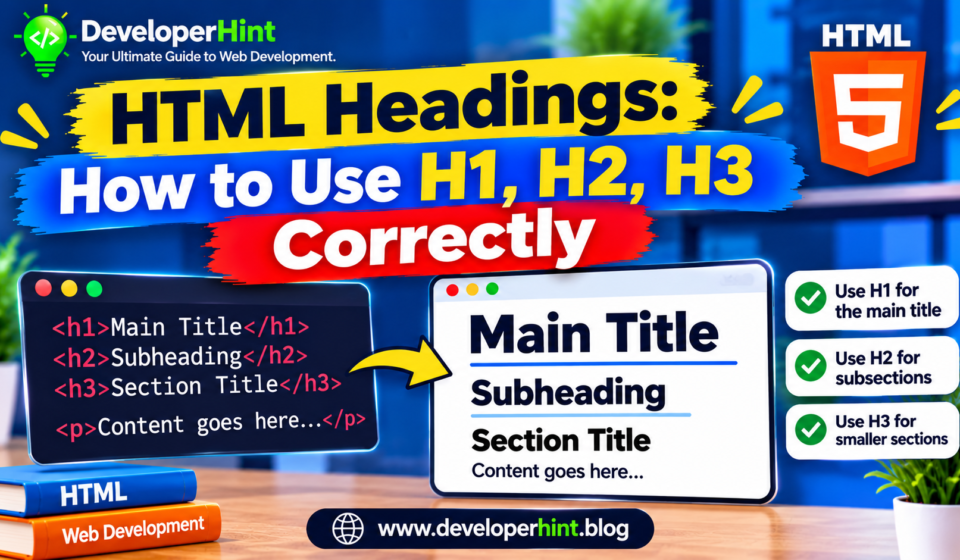
HTML has six heading levels, from h1 to h6, the number shows rank, not size. An h1 is the top-level heading for the whole page, an h2 marks a major section, an h3 marks a subsection inside an h2, and so on down, think of the table of contents of a book, the title is the h1, the chapters are h2s, and the sections inside each chapter are h3s.
<h1>Guide to Houseplants</h1>

<h2>Choosing a plant</h2>
<h3>Low light options</h3>
<h3>Pet-safe options</h3>

<h2>Caring for your plant</h2>
<h3>Watering</h3>
<h3>Repotting</h3>
Browsers give each level a default size, with h1 the largest and h6 the smallest, which is why people mix up rank and appearance, that default styling is only a starting point, and you can change it freely with CSS.
The six levels
| Element | Role | Typical use | Best for |
|---|---|---|---|
| h1 | The main title of the page | Article title or page topic | One per page, describing the whole page |
| h2 | A major section | Chapters of a post or main blocks of a page | Splitting the page into its big parts |
| h3 | A subsection of an h2 | Sub-topics inside a section | Breaking a long h2 into smaller pieces |
| h4 | A subsection of an h3 | Detailed breakdowns | Long documentation and reference pages |
| h5 and h6 | Deeper sublevels | Rarely needed | Very large documents with deep structure |
How many h1 elements should a page have
The safest habit is to use one h1 per page, and make it describe what the page is about, that keeps the outline simple and matches what most style guides and accessibility advisers recommend.
You will sometimes read that more than one h1 will damage your search rankings, but that overstates it, Google has said that multiple h1 elements are not a problem for ranking, and the HTML specification does not forbid them, the practical reason to stick with one is clarity, since a single clear top-level heading gives readers and assistive tools an obvious starting point.
If you use WordPress, your theme usually prints the post title as the h1 already, in that case, begin the body of your post with h2 headings and do not add a second h1 inside the content.
Do not skip levels
Heading levels should go down one step at a time, an h2 is followed by an h3, not by an h4, and an h3 sits inside an h2, you can jump back up as far as you like, for example from an h4 straight to a new h2, because that simply starts a new section, what you should avoid is skipping downward, such as an h2 followed directly by an h4, because it leaves a gap in the outline.
<!-- Avoid: jumps from h2 to h4 -->
<h2>Pricing</h2>
<h4>Monthly plans</h4>

<!-- Better -->
<h2>Pricing</h2>
<h3>Monthly plans</h3>
Why headings matter for accessibility
This is the strongest reason to get them right, many screen reader users move through a page by jumping from heading to heading, and some use a list of headings as a table of contents before deciding where to read.
A tidy hierarchy lets them find the section they want in seconds, a page that uses headings for visual effect, or skips levels, makes that harder, because the outline no longer matches the content.
The opposite mistake is just as common, using bold text or a large font size to fake a heading gives sighted users a visual cue but gives assistive technology nothing.
Headings and SEO
Search engines read headings to understand what a page covers and how it is organized, so clear ones help, they are not a magic ranking lever, though, and stuffing keywords into every heading tends to read badly and does not help, write headings the way you would explain the page to a person.
Put your main topic in the h1, and use h2 and h3 headings to cover the questions and subtopics a reader would expect, descriptive headings also make you more likely to be pulled into featured snippets and similar search features, though that is never guaranteed.
Styling headings without changing their level
When the default size of a heading is not what your design needs, change the look with CSS and leave the level alone.
The level describes structure, and the size is a design decision.
h2 {
  font-size: 1.75rem;
  line-height: 1.3;
  margin: 2rem 0 0.75rem;
}

h3 {
  font-size: 1.25rem;
  margin: 1.5rem 0 0.5rem;
}

/* A smaller h2 on one page without changing its rank */
.sidebar h2 {
  font-size: 1.1rem;
}
Where headings sit with sections and articles
Elements like section and article group content, but they do not change the numbering of headings, an older idea from early HTML5 drafts suggested that headings could restart at h1 inside each section, and browsers never supported it so keep using the real heading level for the position of the content in the whole page, whatever it is nested inside.
Linking directly to a heading
Adding an id to a heading lets you link straight to it, which is handy for tables of contents and for sharing a link to one section of a long post.
<h2 id="styling">Styling headings</h2>

<a href="#styling">Jump to styling</a>
Common mistakes to avoid
Choosing a heading level for its size is the most frequent one, followed by skipping levels and using several h1 elements without a reason, others include writing vague headings like “More info” that tell a reader nothing in a heading list, and wrapping whole paragraphs in heading tags.
A heading should be short, usually a phrase and not a full sentence, and it should describe the text beneath it, empty headings are another trap, often left behind by page builders, and they show up as blank entries in a screen reader’s list.
Read your headings on their own, without the text between them, they should tell the story of the page in order, check that there is one clear h1, that the levels step down one at a time, and that every heading describes the content under it.
If you are working in WordPress, the document overview panel in the block editor lists your headings, and browser extensions such as the HeadingsMap or the built-in accessibility tree in developer tools can show you the outline of any page.
Discover more from Developer Hint
Subscribe to get the latest posts sent to your email.
Content Disclosure
This content was created with the assistance of AI tools and thoroughly reviewed, fact-checked, and refined by a human editor to ensure accuracy, clarity, and usefulness for readers.Advertisements